The Sales Flow is an all-in-one view of all transactions you are working on at any given time. Each Sales Flow zone is a milestone for an individual client’s progress toward a successful transaction. Each zone includes a task list to help you stay on top of the transaction and keep a steady pipeline for your business. These task lists can be customized by adding or removing any task while you're moving through the transaction. They can also be updated for all future transactions within Engage Settings.
The zones reflect how you work as an agent and are not tied to a listing on the MLS and the tasks will be specific to that segment of the lifecycle of a transaction. Marketing will be where most of your contacts will be placed. Tasks include connecting for coffee, subscribing to a touchpoint, or posting to their social media. The Prospects zone is for those people that have raised their hand and indicated an interest in buying or selling. The Actives zone is for those transactions you are actively working on (staging, finding the photographer, going on buyer tours, listing the property on the MLS, etc...). And the Pending zone is for transactions that have a mutually agreed upon buyer/seller contract and a known close date.
Adding a New Transaction to your Contact
Moving a Transaction Through the Sales Flow
Moving to the Active Zone
Moving to the Pending Zone
Closing a Transaction
Adding a New Transaction to your Contact
To locate a person in Engage you can search for their name in theFind People search box
Or select People from the top navigation menu and choose My People from the drop-down
If using the Find People search box, type in your person's name and select their name from the options
If using the My People screen, search for their name in the top search box, or use the filters to narrow your results. Then select your person by clicking on their name.
This brings you to the Profile Page for the selected person
- Listing address or area of interest
- Target price
- number of bedrooms in the list property or that the buyer is looking for
- number of bathrooms in the list property or that the buyer is looking for
- will this be your default commission amount or a flat fee you're charging
Then select Done
You can edit these details throughout the lifecycle of this transaction!
Be sure to include your actual starting date for your transaction. MoxiEngage will gather data about how you work with your people and use that to provide you insight into your potential goal for the calendar year.
Moving a Transaction Through the Sales Flow
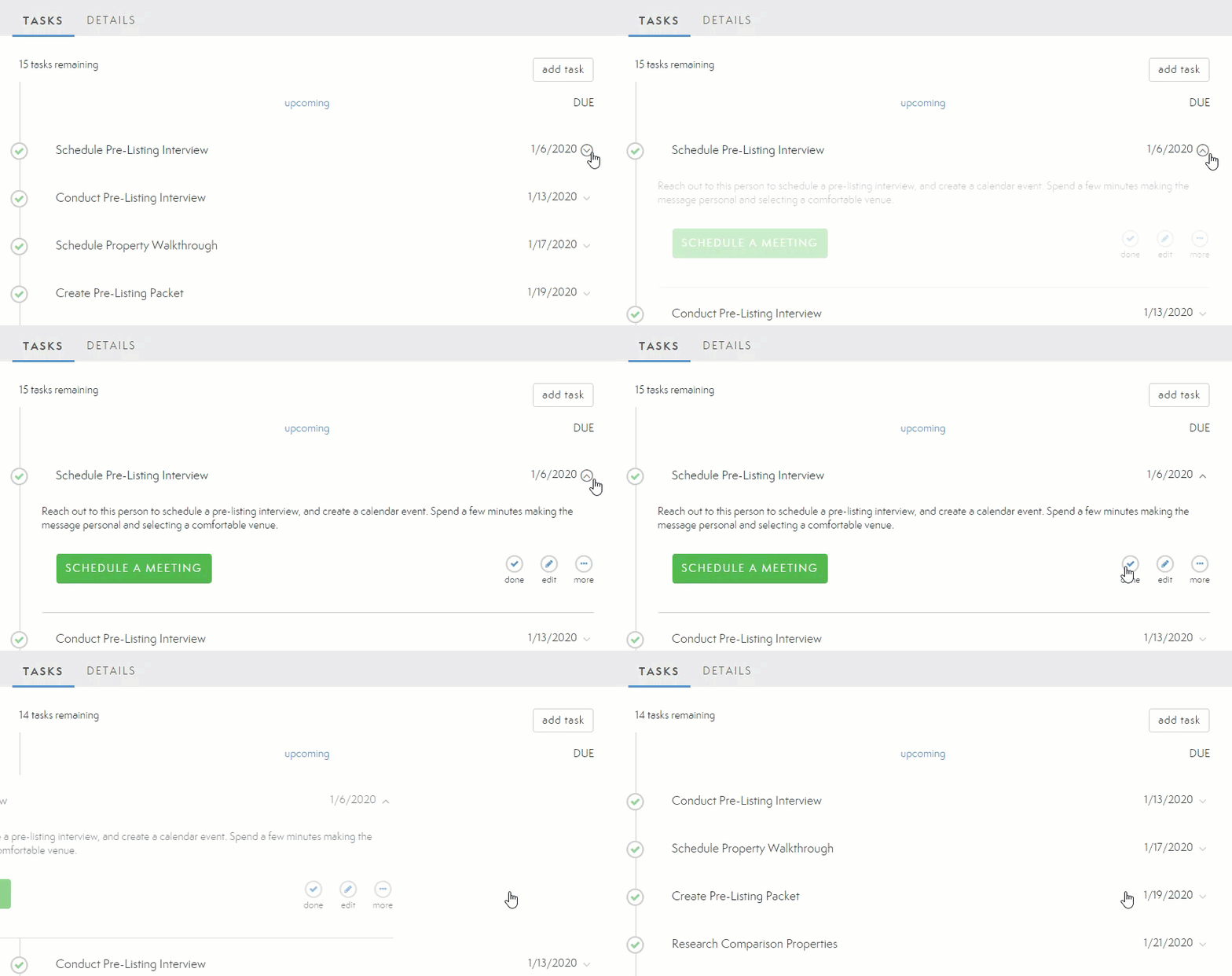
Each zone of the Sales Flow will display the tasks you can complete for your transaction. Select the task to expand its description and options. You can then mark the task as Done, Edit its due date, or select More to Delete this task, Add it to your Calendar, or Delegate.

Tasks do not need to be marked Done to move to the next section.
Moving to the Active Zone
When you are ready to move on from the Prospects Zone, select the Move to Active Zone button. A pop-up will appear for you to verify you would like to move the transaction forward.
Select Yes to confirm
TIP: This is a segment in the Sales Flow where you cannot move backward. Once you have moved into the Actives zone if a transaction falls through it is considered a lost transaction and you can mark it as Deactivated. Deactivated transactions are tracked in your Goals and your contact will be automatically placed into the Marketing zone.
Learn more about how to Deactivate a transaction HERE
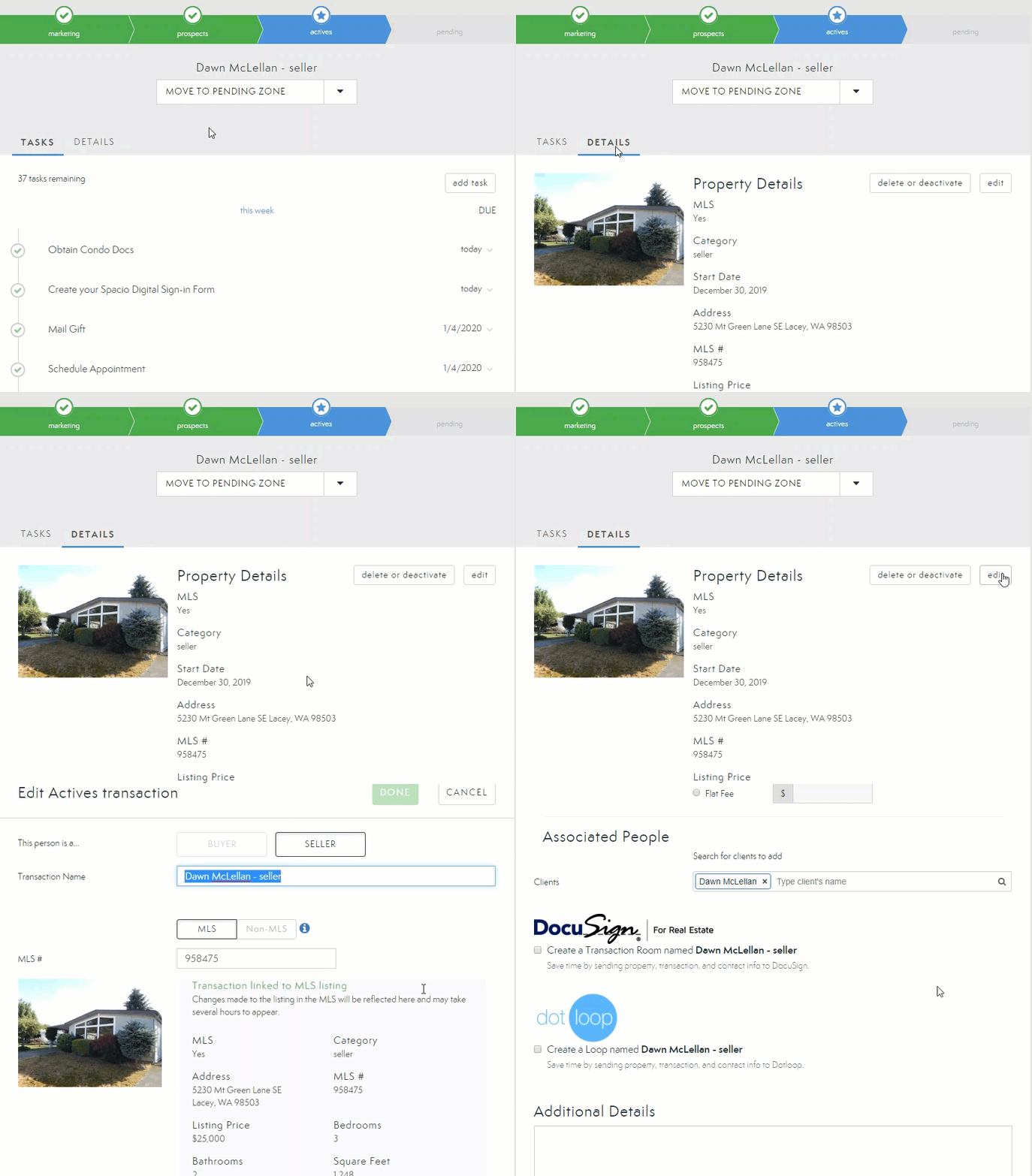
This is a good time to visit the Details tab and enter any additional information you have on your transaction.
- Listing Number
- Associated people
- Connect any transaction room if you have an integration with DocuSign or a Loop if you are integrated with DotLoop
Select your tasks to expand their descriptions and options. You can then mark the task as Done, Edit its due date, or select More to Delete this task, Add it to your Calendar, or Delegate.
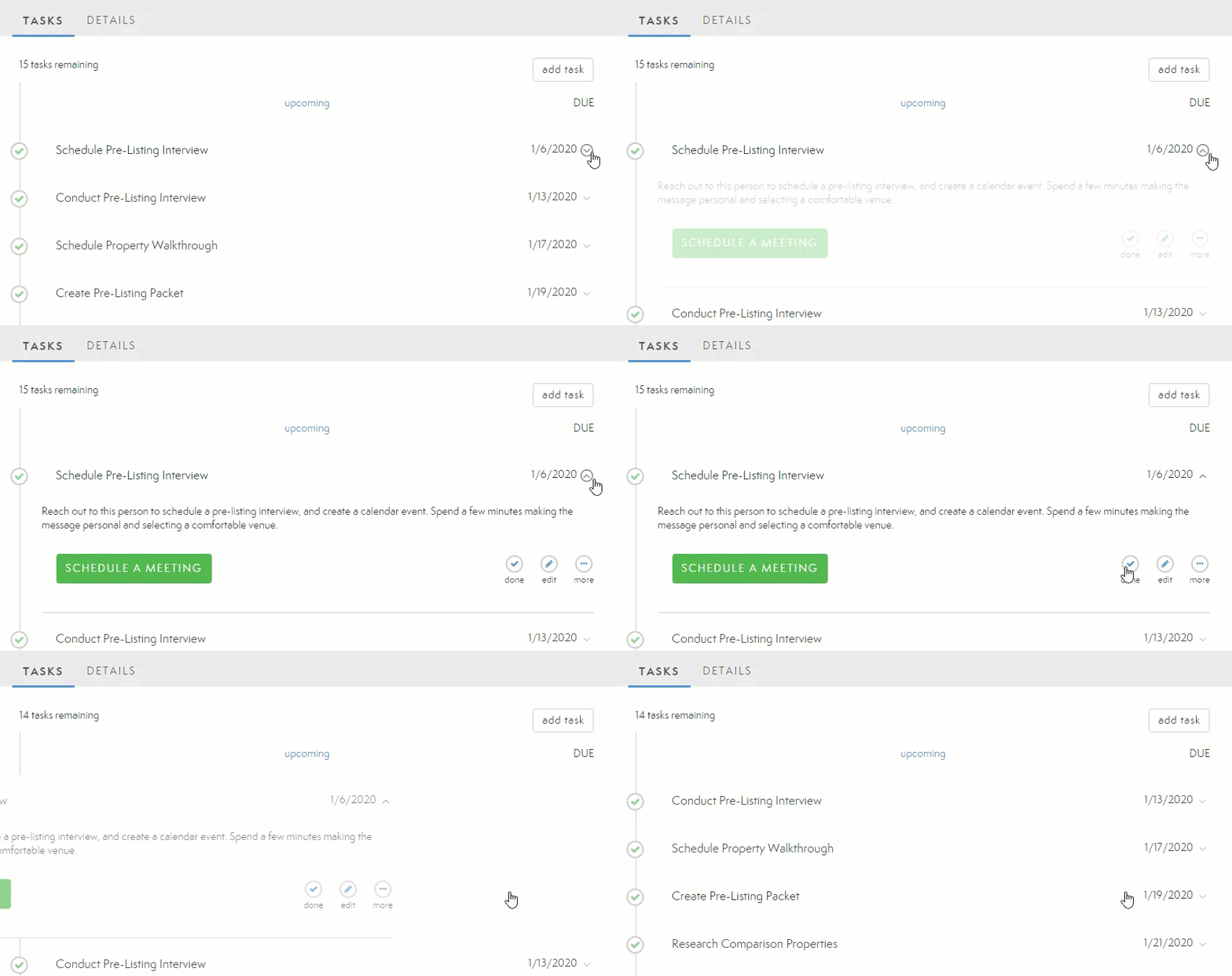
Tasks do not need to be marked Done to move to the next section.
Moving to the Pending Zone
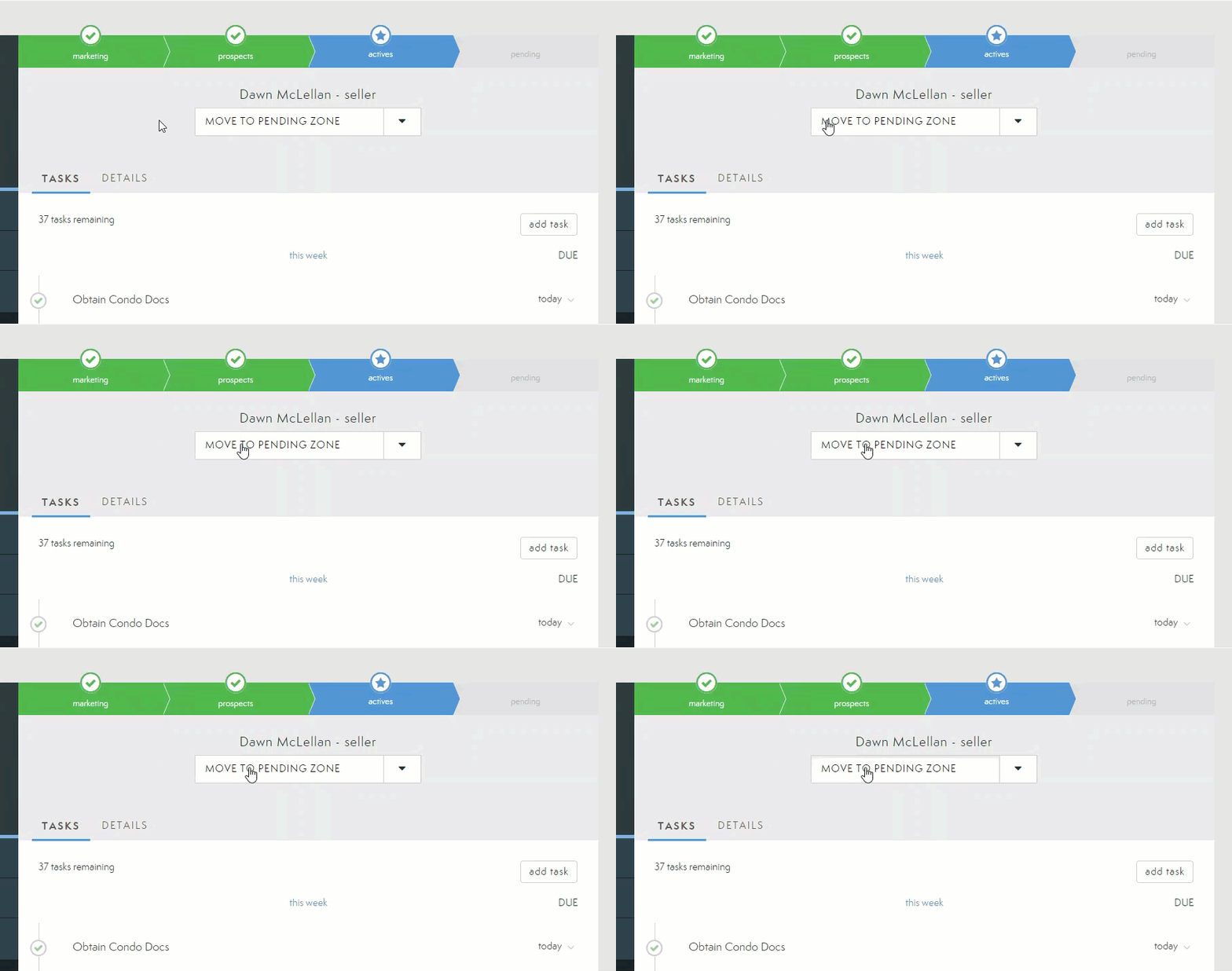
When you have a mutually agreed upon Buyer/Seller contract, you are then ready to Move to Pending Zone.
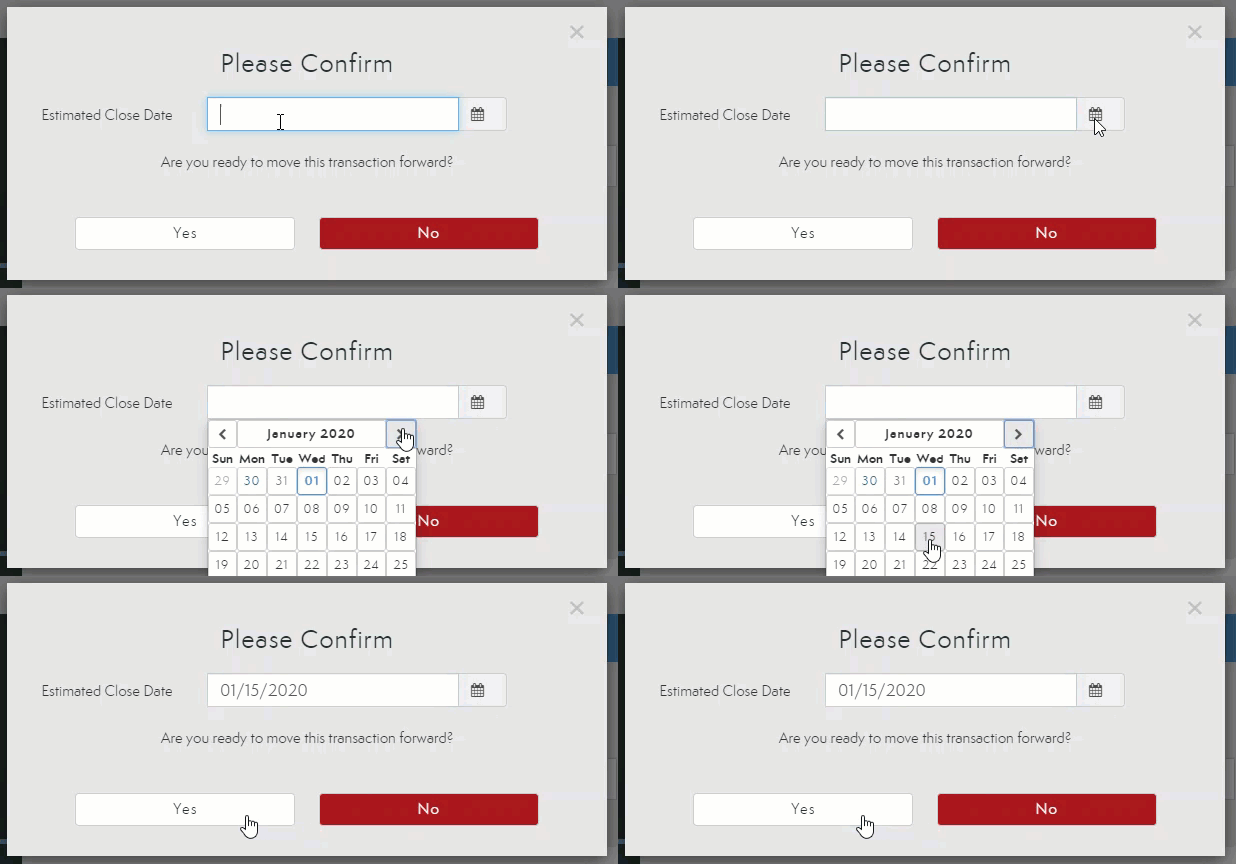
A pop-up will appear for you to enter the Estimated Close Date. If this date is not known at the time you move this transaction, enter a goal date for your transaction to close. Then select Yes to confirm you are ready to move to the Pending Zone.
TIP You can move your transaction back to the Active zone if the contract falls through. This section of the Sales Flow does not require you to mark the transaction as deactivated unless the entire transaction is lost. You can move from Active to Pending zones as often as needed.
Select your tasks to expand their descriptions and options. You can then mark the task as Done, Edit its due date, or select More to Delete this task, Add it to your Calendar, or Delegate.
Closing a Transaction
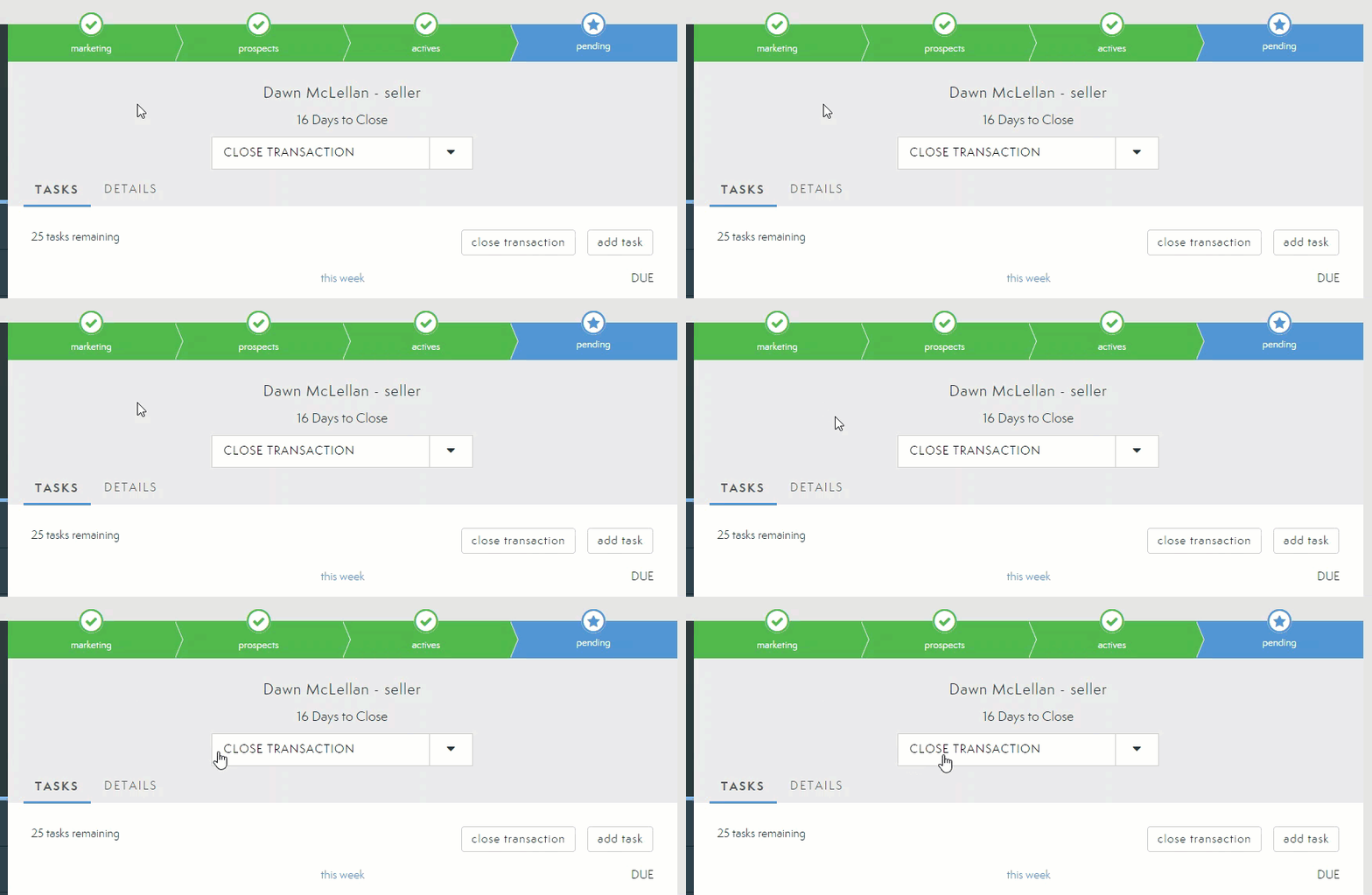
Once you are ready to close your transaction, select Close Transaction
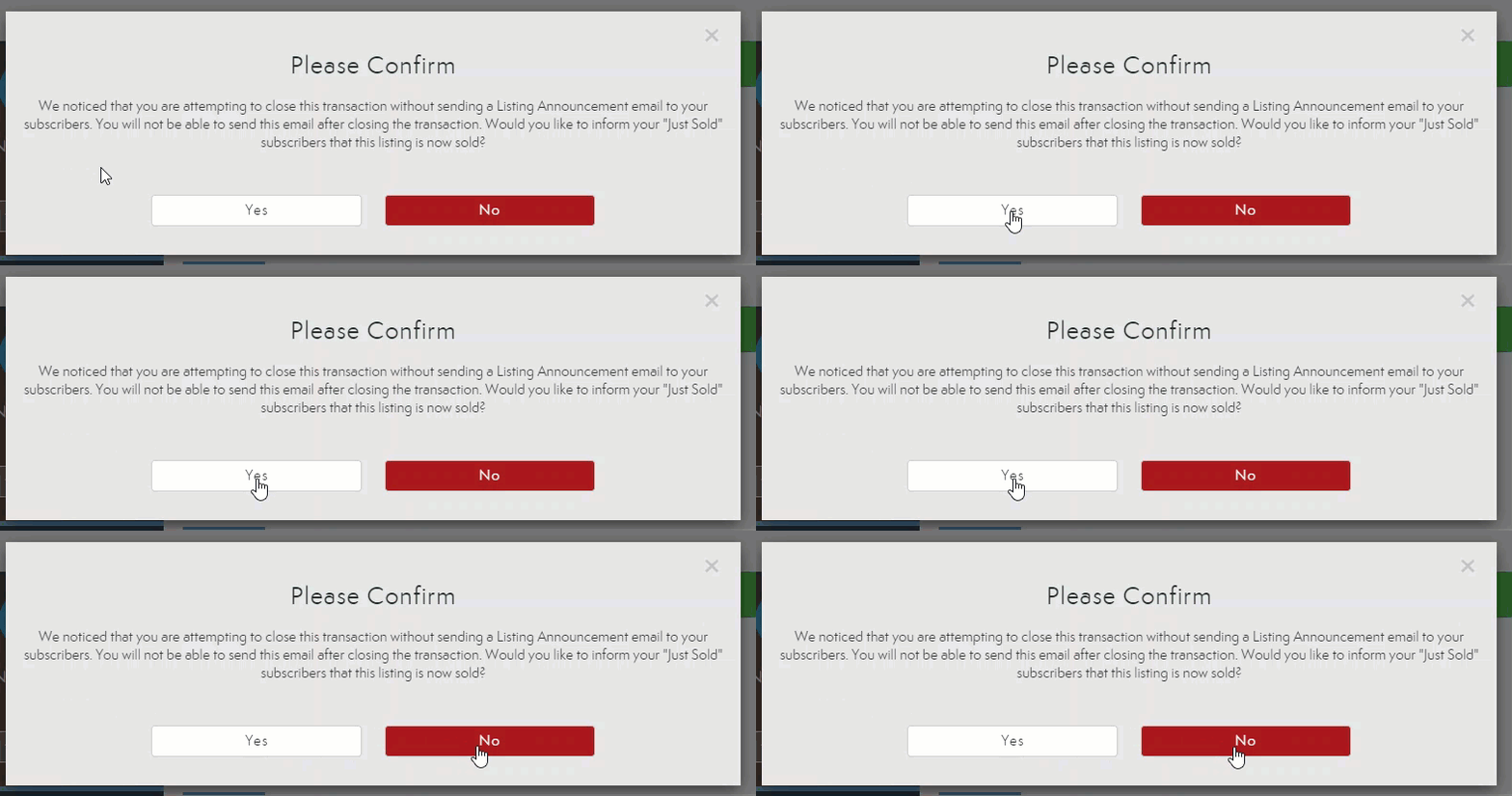
If you have not sent out a Just Sold Announcement, a pop-up will appear asking if you would like to send this announcement out. These email announcements cannot be sent after your transaction is closed. Select which option works for you.
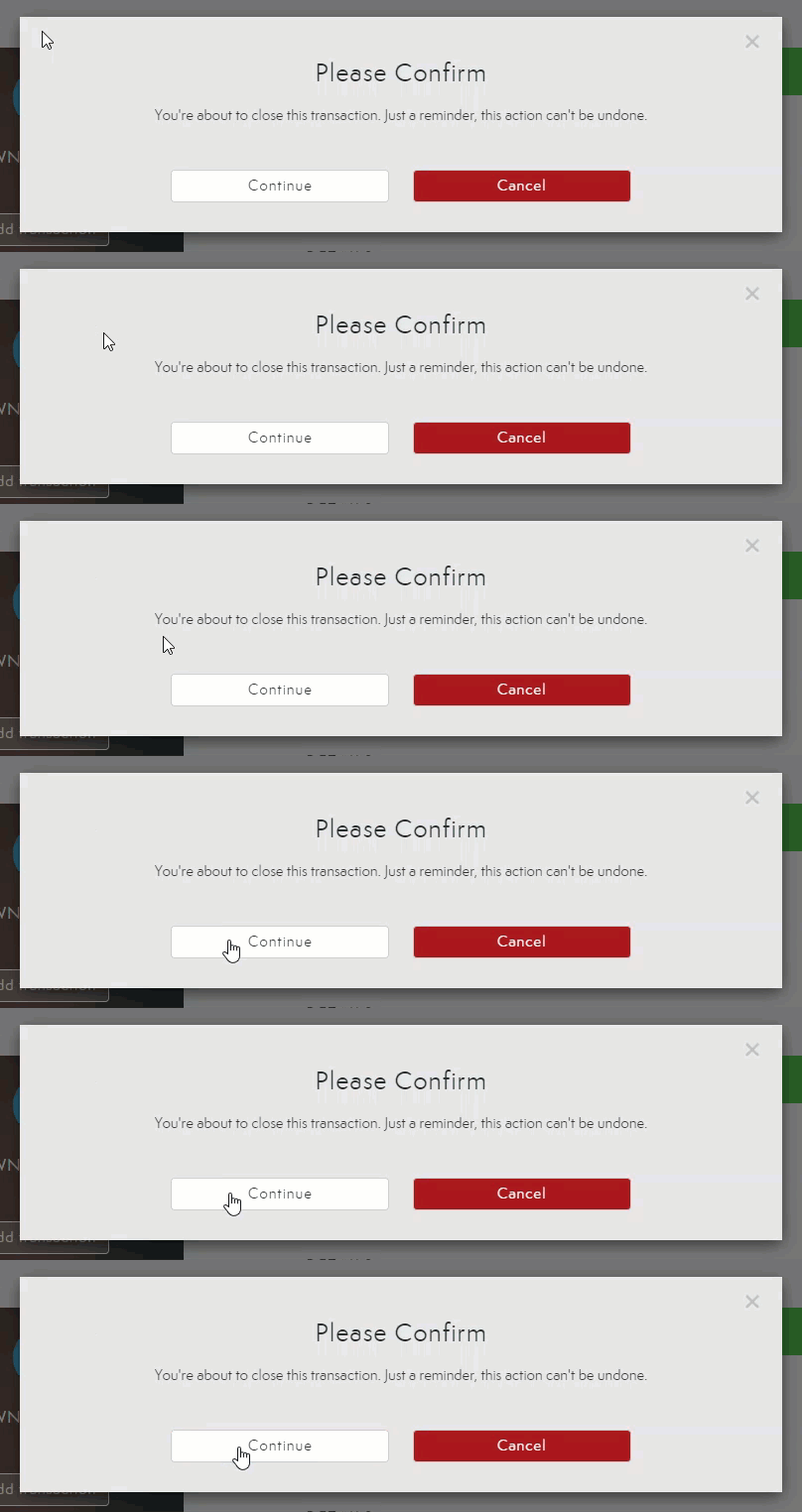
Close the transaction to see it reflected in your GCI Goals.
Note: You may also be asked to confirm all the transaction details if they are not present in the Details tab when your select Close.
Comments
0 comments
Please sign in to leave a comment.