MoxiEngage methodology encourages you to stay top of mind with your sphere by communicating regularly. There are several touchpoints included with Engage that allow you to subscribe your contacts to and easily stay top of mind.
Keep your sphere in flow and in constant contact by using special dates like Birthdays, Anniversaries, and House-iversaries as regular touch-points. You can send emails or send a gift using Loop and Tie!
Included in this article:
Adding Dates to Your People
Adding to Calendar
Sending Special Date Emails
Learn more about Setting your Special Date Preferences HERE
Adding Dates to Your People
Log in to MoxiWorks and select Engage from the navigation bar
To find a person in Engage you can search for their name in the Find People search box
Or select People from the top navigation menu and choose My People from the drop-down
If using the Find People search box, type in your person's name and select their name from the options
If using the My People screen, search for their name in the top search box, or use the filters to narrow your results. Then select your person by clicking on their name.
Select Profile on the left side of the screen
Then select Edit
Scroll down to Dates and then select the type of date to add from the drop-down menu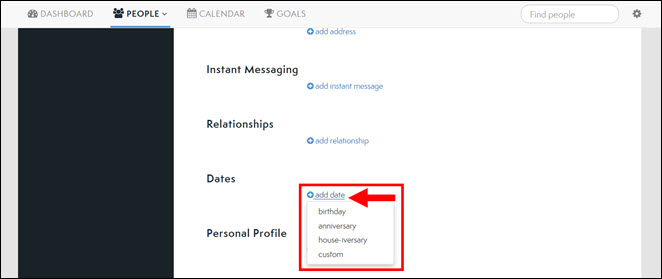
Then, enter the date
Adding Special Dates to Your Calendar
Special Dates can be added to your calendar automatically by setting this in your Preferences menu.
Or, you can add only specific dates to your calendar:
Follow the steps above to access your person's profile
Scroll down their profile to find Dates and then select add to calendar
The calendar icon will then appear and you know the date is added to your calendar

Sending Special Date Emails
Follow the steps above to find your person's profile
Scroll down to the Dates section and select the Calendar icon
This will bring you to your Calendar and the specific date of your contact's Special Day. You can then select either Say Happy Birthday in an email right away or schedule to send on their special day, send a gift with our gifting partner Loop & Tie TM, or call your person if you have their phone numbers added to their profile.
Select Say Happy Birthday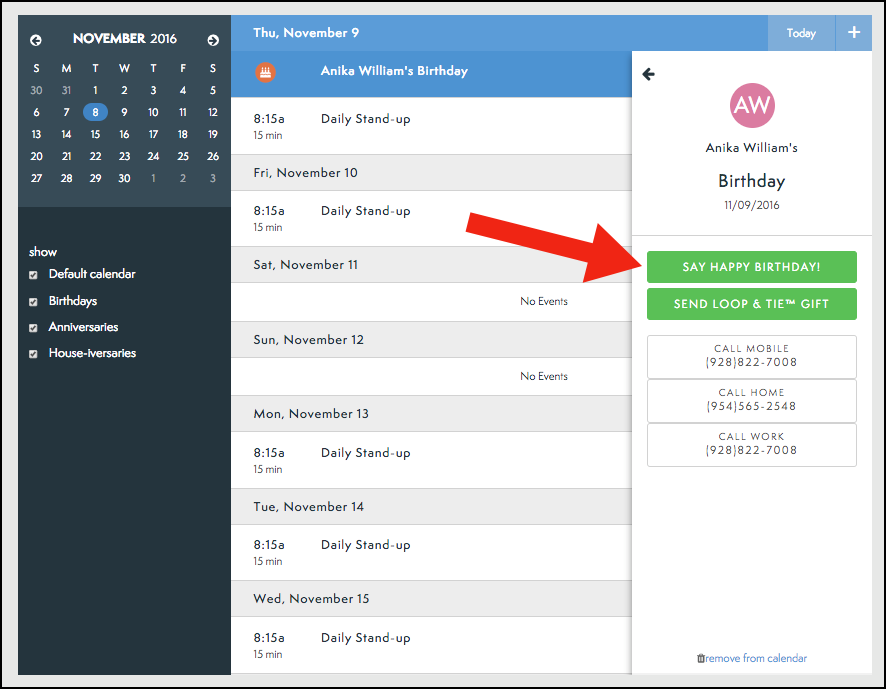
Update/confirm the email address, message, and send options
Then select Schedule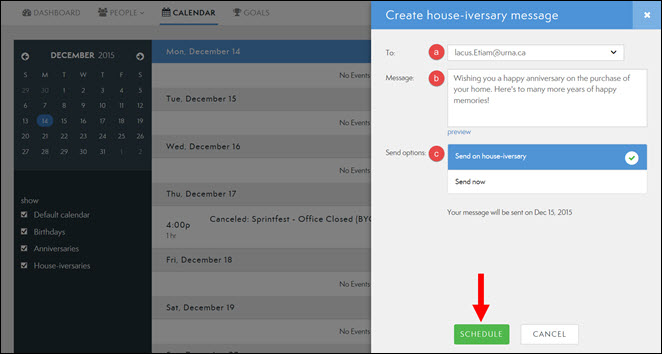
Sending Special Date Gift
Sending a gift on someone's special day is that next-level way of saying this person is important to you and you value that relationship. With our gifting partner Loop & Tie TM, you can set a budget and they will send your person a catalog of curated gifts within that price range. Your contact never knows the monetary value of their gift. They get to select what they want from the options available to them and they get to feel good that you thought to send them a little something extra.
This is a great extra for significant birthdays, closing gifts, first house-iversaries, and other milestone dates.
Select Send Loop and Tie Gift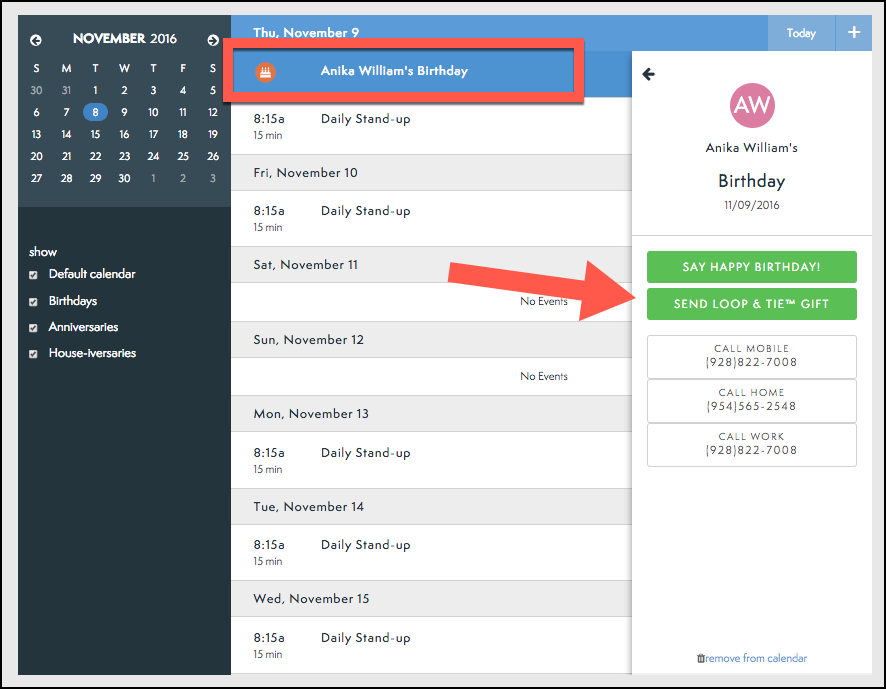
This will bring you to your Loop and Tie account.
If you have any issues with your Loop and Tie account, please contact the support team using the chat box (See below)

Comments
0 comments
Please sign in to leave a comment.