When your future clients look for their next Real Estate agent, they want to find someone with the right experience. Your Agent Website is your living résumé, so it’s the perfect place to demonstrate everything you have done and are doing as a Real Estate agent. Show off your current listings and your past sales using the Agent Website property lists!
To create a new property list, follow the below steps:
- Select the down-pointing arrow next to Manage Property lists in the Admin Navigation Menu, and then select the View Property Lists button.
-
Select the Add New List button
- This brings you to the Property List Editor screen (see below).
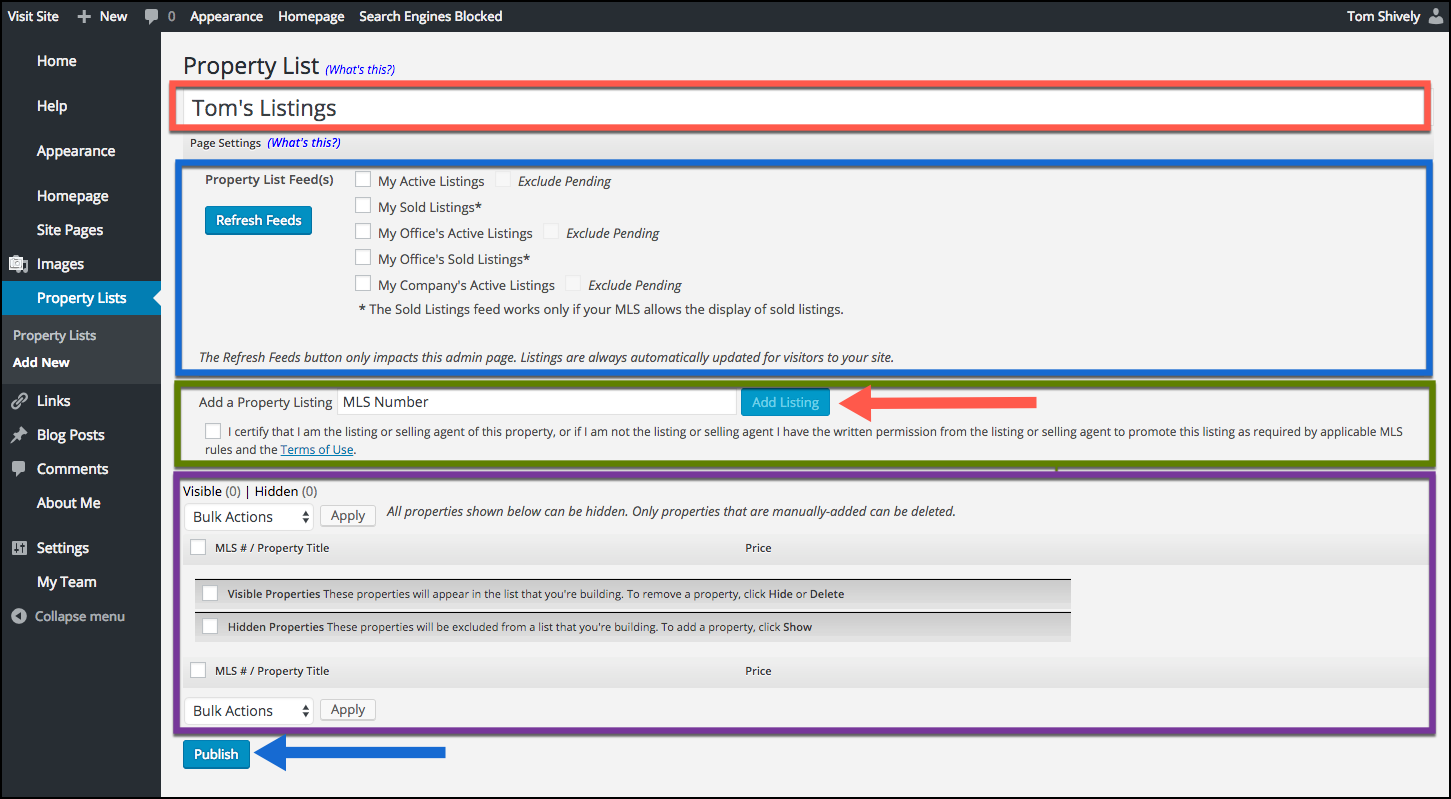
- Create a name for your new property list. Example: Elaine’s Listings instead of My Active Listings (see above, highlighted in red).
- Select the type of property list you are going to create:
-
Property List Feed(s): Your active, sold, office or brokerage listings are provided automatically from the MLS database.
- NOTE: You can choose to exclude Pending listings by checking the box next to Active Listings.
- Add Property Listing: Here you can add listings manually by MLS number to create a custom list of properties you wish to highlight.
-
Combination: Combine the feed and manual list.
- NOTE: You can create lists using any combination of the above.
-
Property List Feed(s): Your active, sold, office or brokerage listings are provided automatically from the MLS database.
- Click Publish (see above, indicated by the purple arrow).
Now that you have created a new property list, you must create a new property page. To learn how, please review the article entitled Displaying Your Property Lists on Your Website.
.
Comments
0 comments
Please sign in to leave a comment.