Neighborhood News is the monthly market email drip campaign you can set and forget. Set up the subscription for all of your contacts, just a few, or groups of people. Neighborhood News provides people with relevant, housing market statistics and information by zip code or location – all branded with your contact information.
Subscribing a Person to Neighborhood News
Quick Neighborhood News
Custom Neighborhood News
Subscribing a Person to Neighborhood News
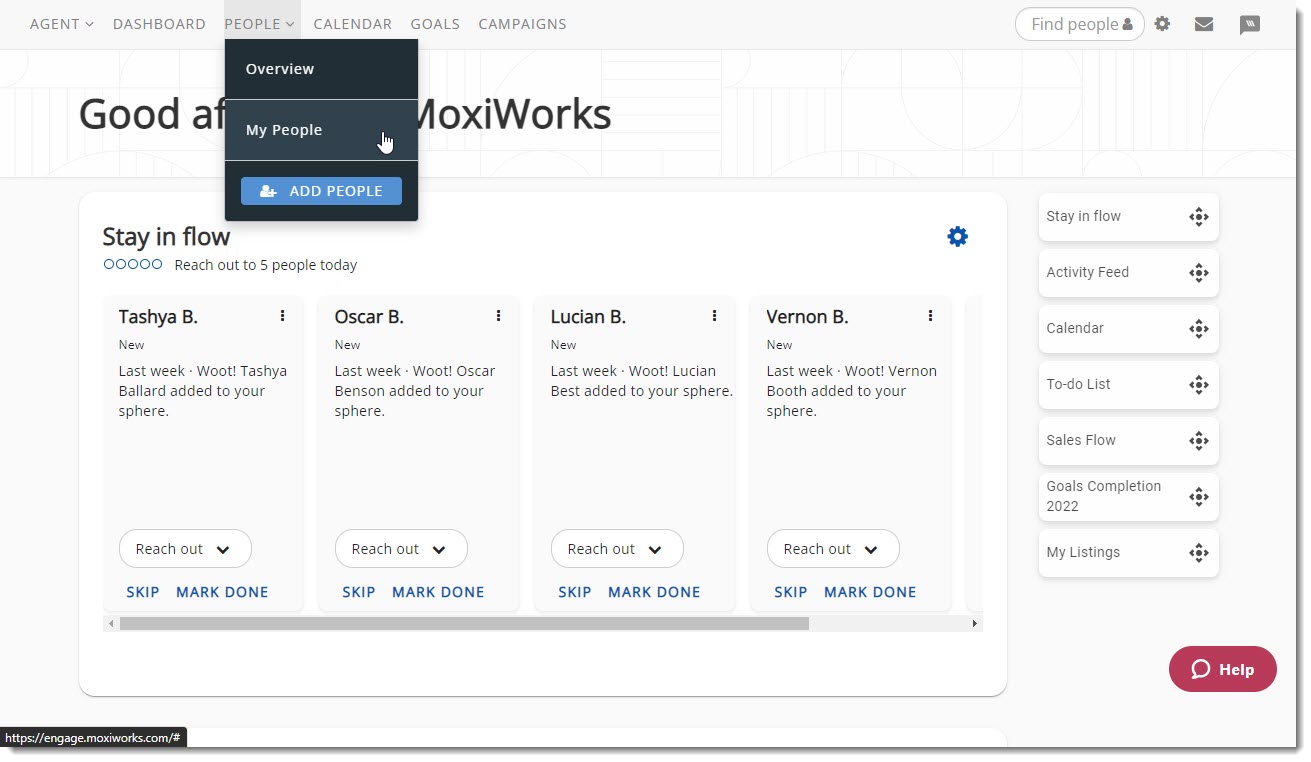
1. From your MoxiEngage Dashboard, select All People on the People section (see below)
2. From the My People screen, select the person you would like to subscribe to Neighborhood News (see below)
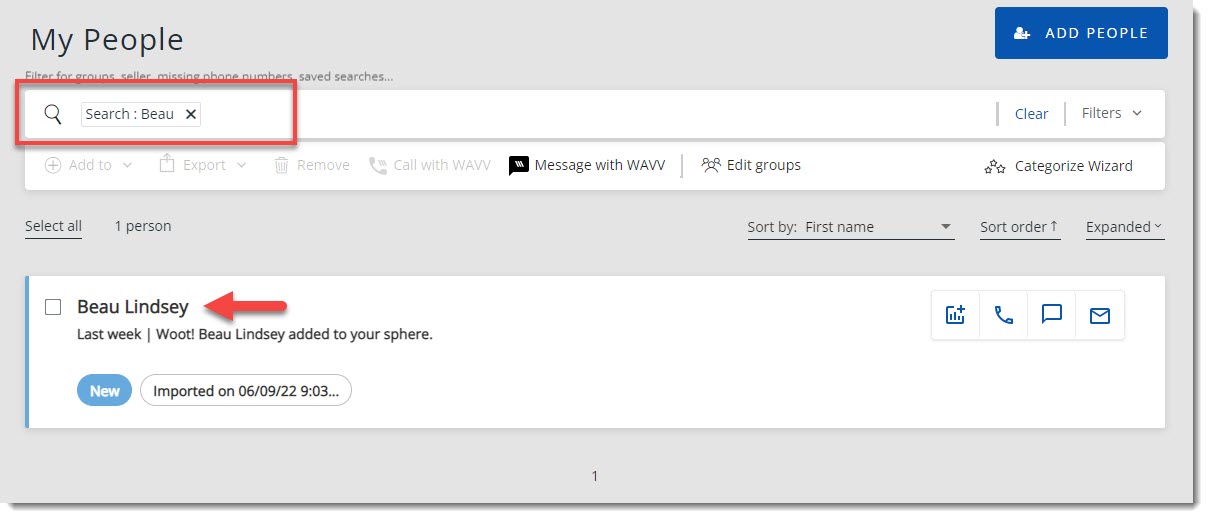
 NOTE: You can search for specific people in the search bar at the top of the screen.
3. From the Profile Page, scroll down to the Subscriptions section and select Add Subscriptions (see below)

NOTE: If you have already added a subscription for this person you can add another. The active subscription will be listed with the number already subscribed (see below)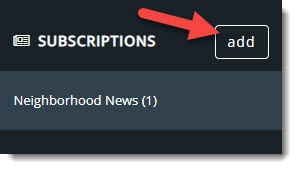
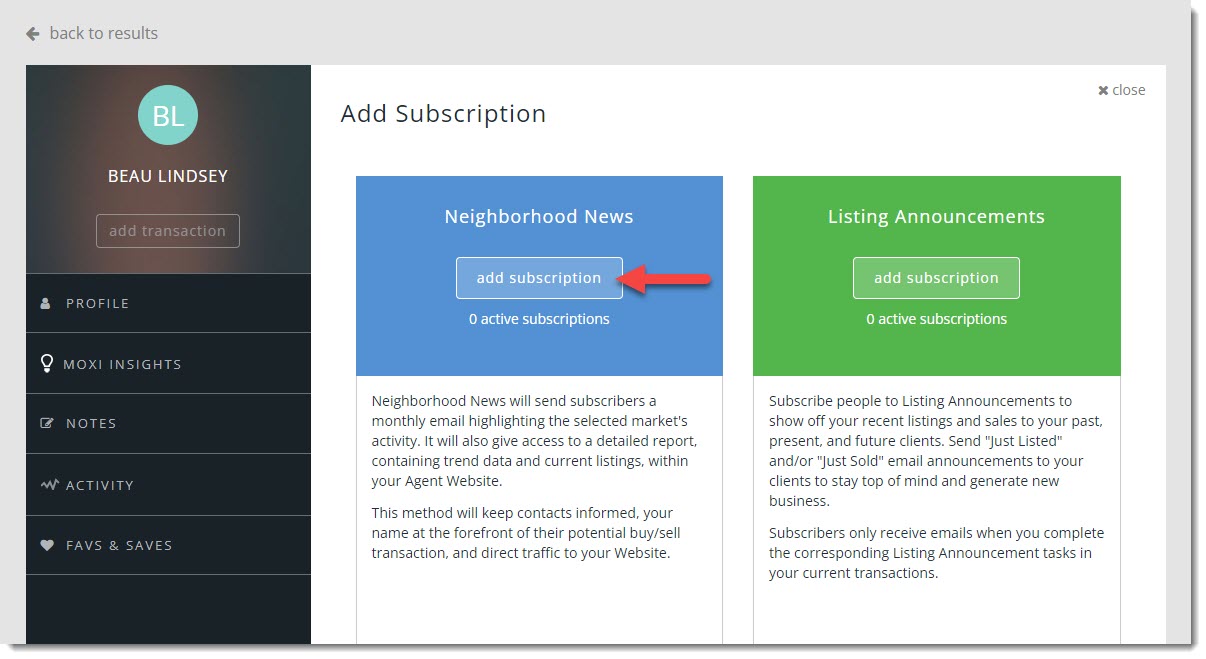
4. Select Add Subscription on the Neighborhood News panel (see below)
5. Select either Quick or Custom Neighborhood News
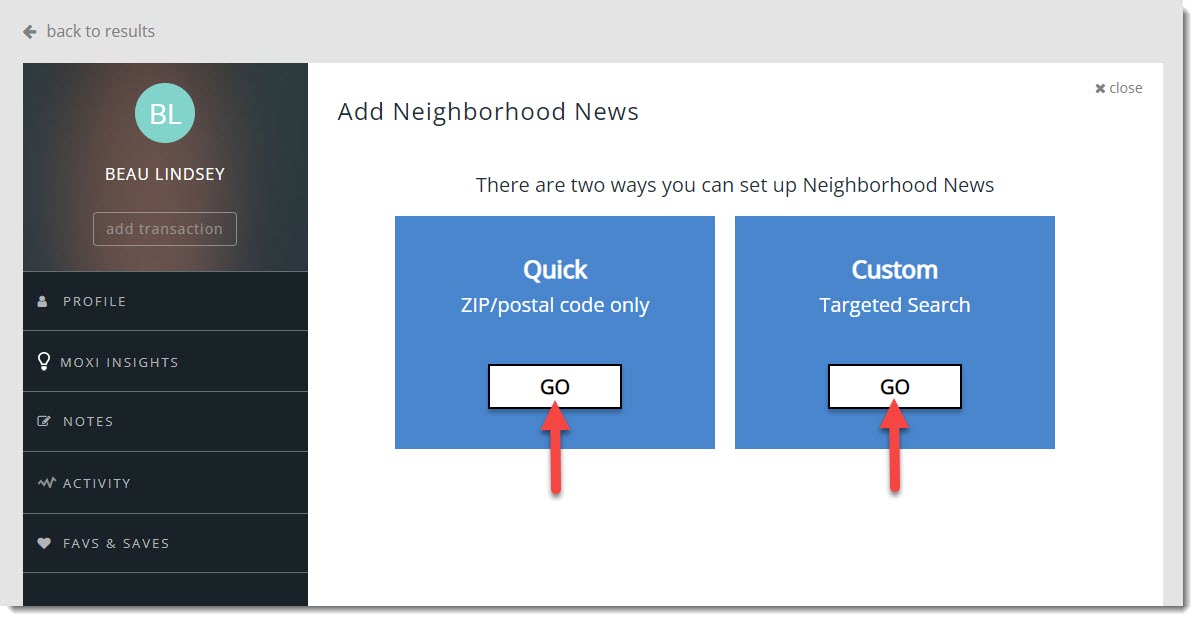
- Quick: Use a zip code to indicate the market area used for the Neighborhood News report
- Custom: Create a report that includes multiple zip code areas, focus on a smaller neighborhood, or highlight specific property types to display first in the report.
Quick Neighborhood News Subscription
1. Select the Email Address and Zip Code you would like to use for Neighborhood News then select Done when finished (see below).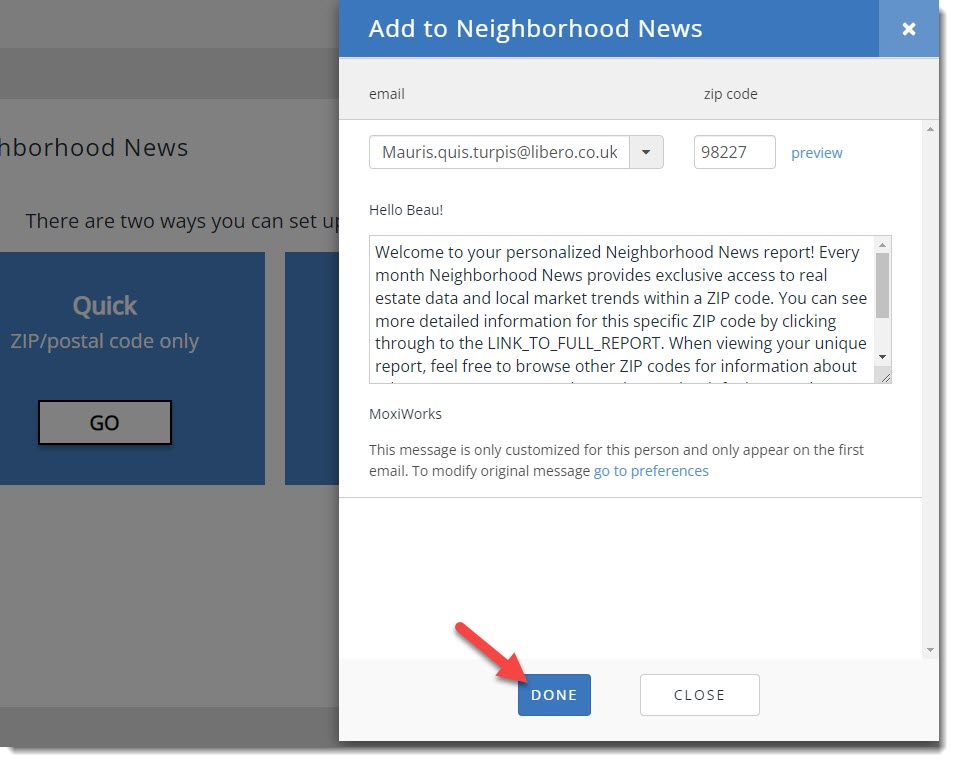
NOTE: If a mailing address exists in the person's profile, the zip code from that address will auto-populate the zip code field.
NOTE: If multiple email addresses exist in the person’s profile, a drop-down menu allows you to select which email address you wish to use. If no email exists on the profile, simply type in the desired email
 TIP: Once you enter a zip code, you have the option to preview the Neighborhood News report
Custom Neighborhood News
Create a targeted market trend report that will grab your customer's attention. Does your customer live in a single-family home or a condo? Are they in an urban setting or more suburban? If you chose the Quick Neighborhood News method, would your person see information they will think does not fit them? Custom Neighborhood News allows you to create a more targeted report for your person.
Select the parameters of your search using the Customize Search pop-up and then select NEXT (see below).
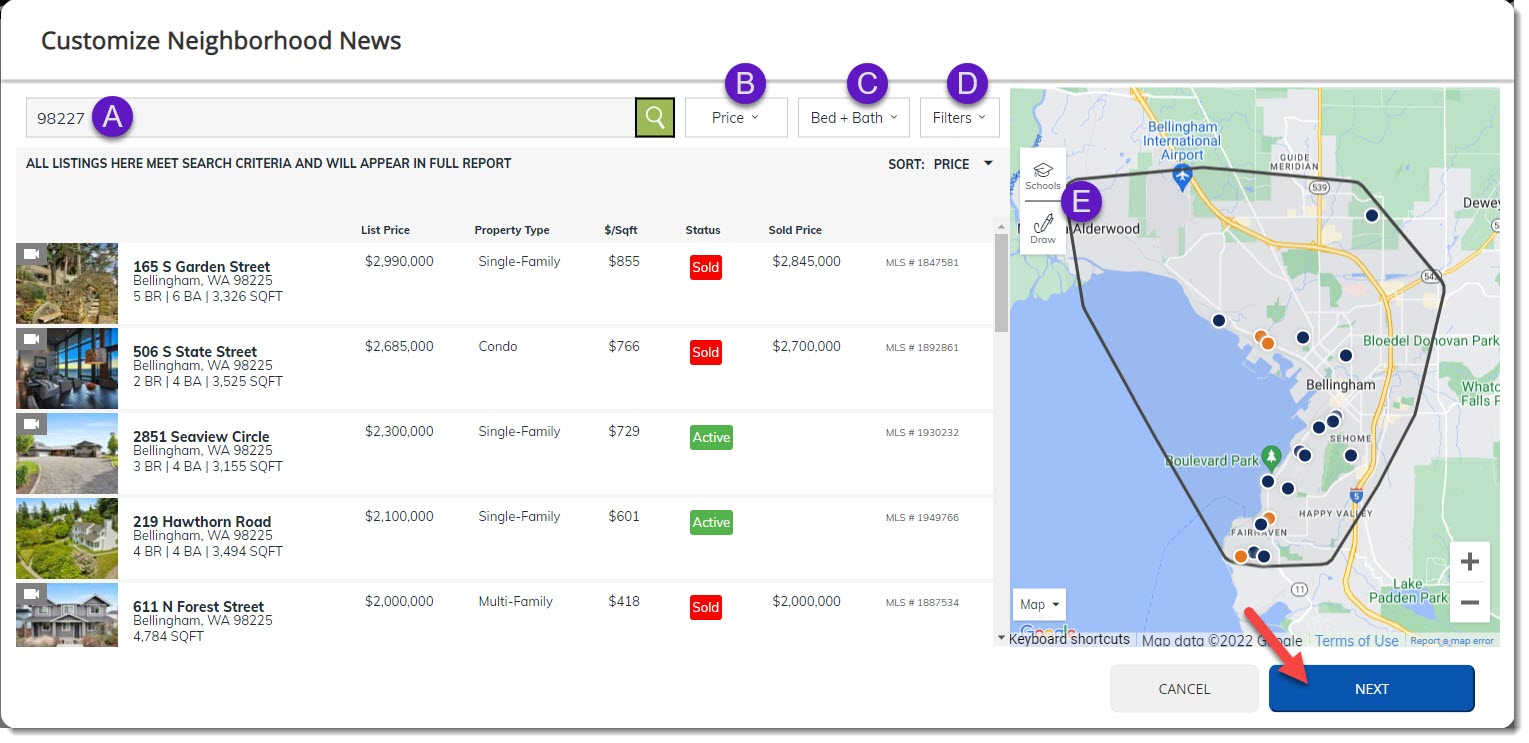
 Location: search by Location, Zip Code, Address, or Neighborhood
 Price: set Price Minimums and Maximums
 Bed + Bath: choose Bed and Bath Counts
 Filters: add additional filters for Property Type and Square Footage
 Boundary: search by School district or attendance zone boundaries, or Draw custom search boundaries
Confirm recipients and select NEXT(see below).

NOTE: If multiple email addresses exist in the person’s profile, a drop-down menu allows you to select which email address you wish to use.
Preview both the email and the full report and then select SEND TO (see below).
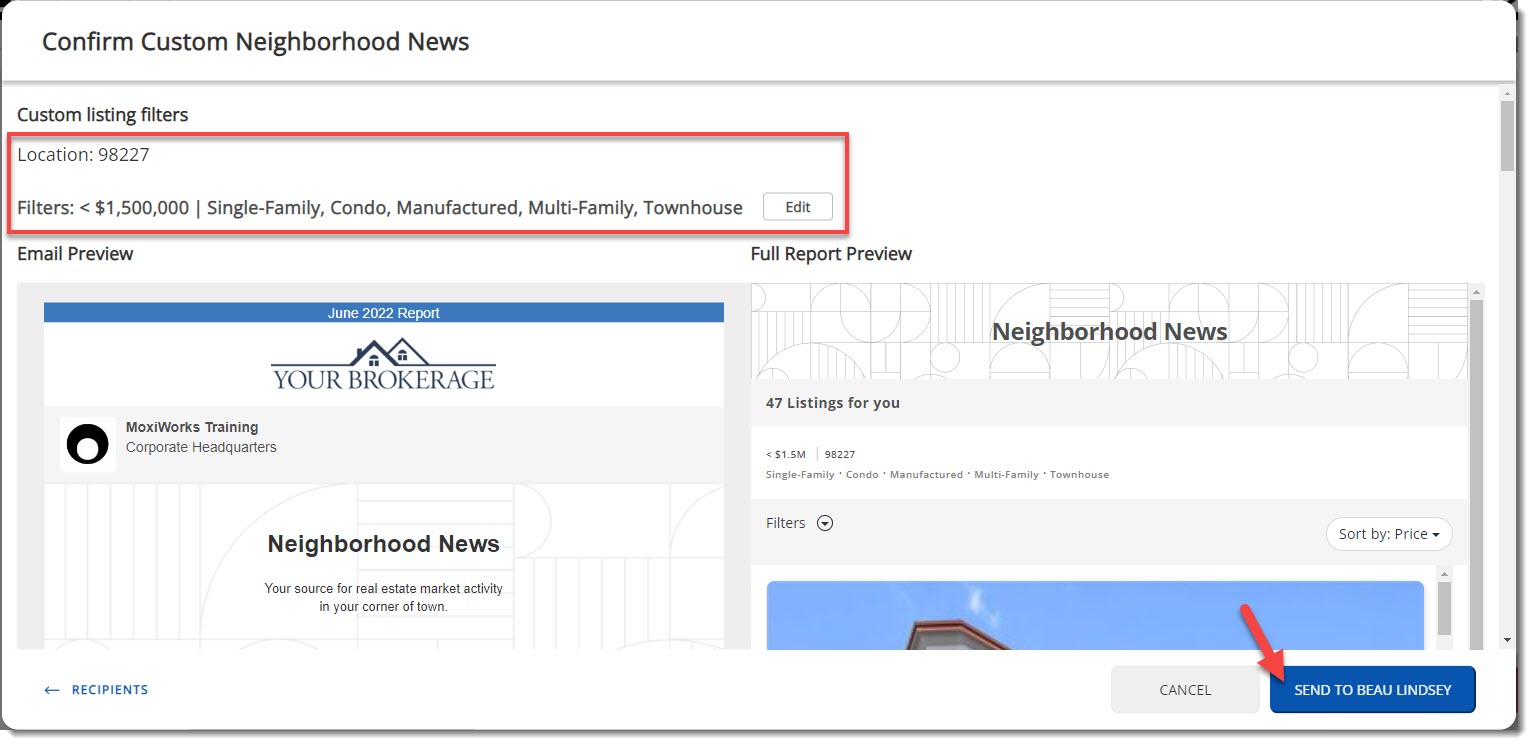
NOTE: You can select Edit at the top of the previews to make any adjustments to your selections.
You have now seen how to subscribe a person to Neighborhood news. If you need to Edit, resend (Send Now), or preview the subscription, you can find those options under the more drop-down menu on the subscription DETAILS page (see below).

Comments
0 comments
Please sign in to leave a comment.