The Draw on Map feature is a way of setting your own search boundaries when buying a listing. There are 2 ways to draw on the map to search for listings. Quick draw which is a click and drag way of making a boundary. Multi draw will let you create multiple areas for listings!
Quick Draw
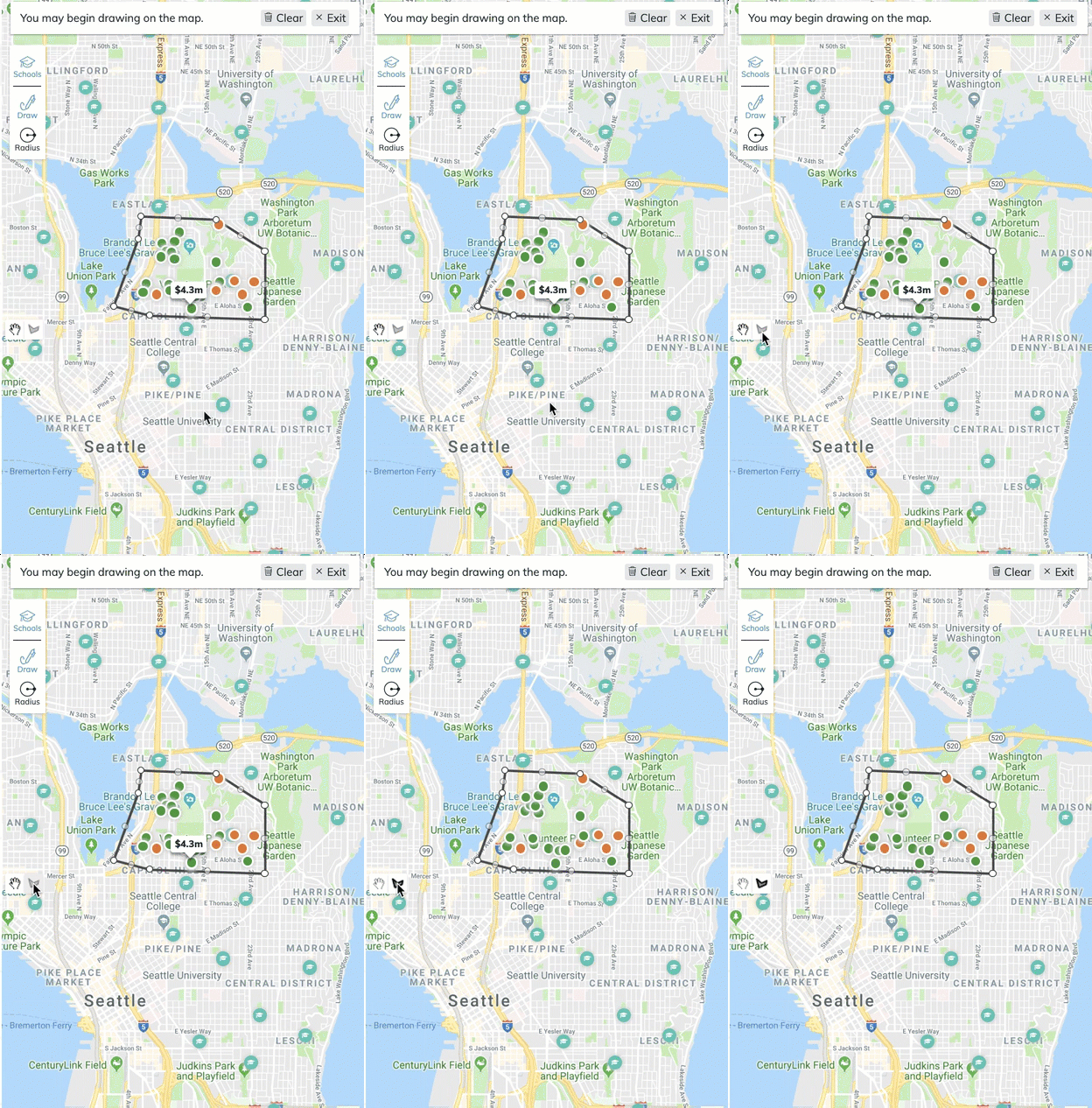
- If you have a specific search area in mind, select the quick draw button on the right side of the map.
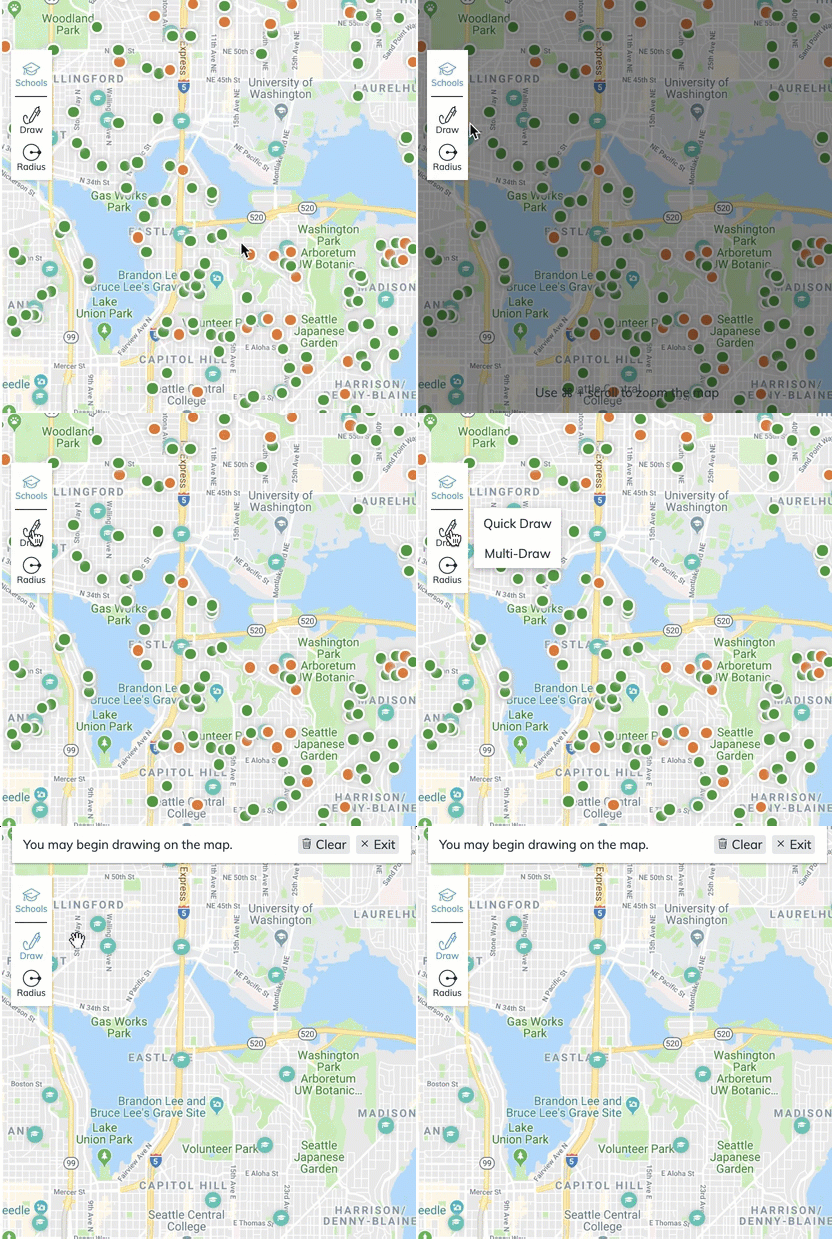
- This option will allow you to draw a specific area on the map, and only Comps within this area will be displayed as results.
- Click and drag around the area you would like as a boundary.
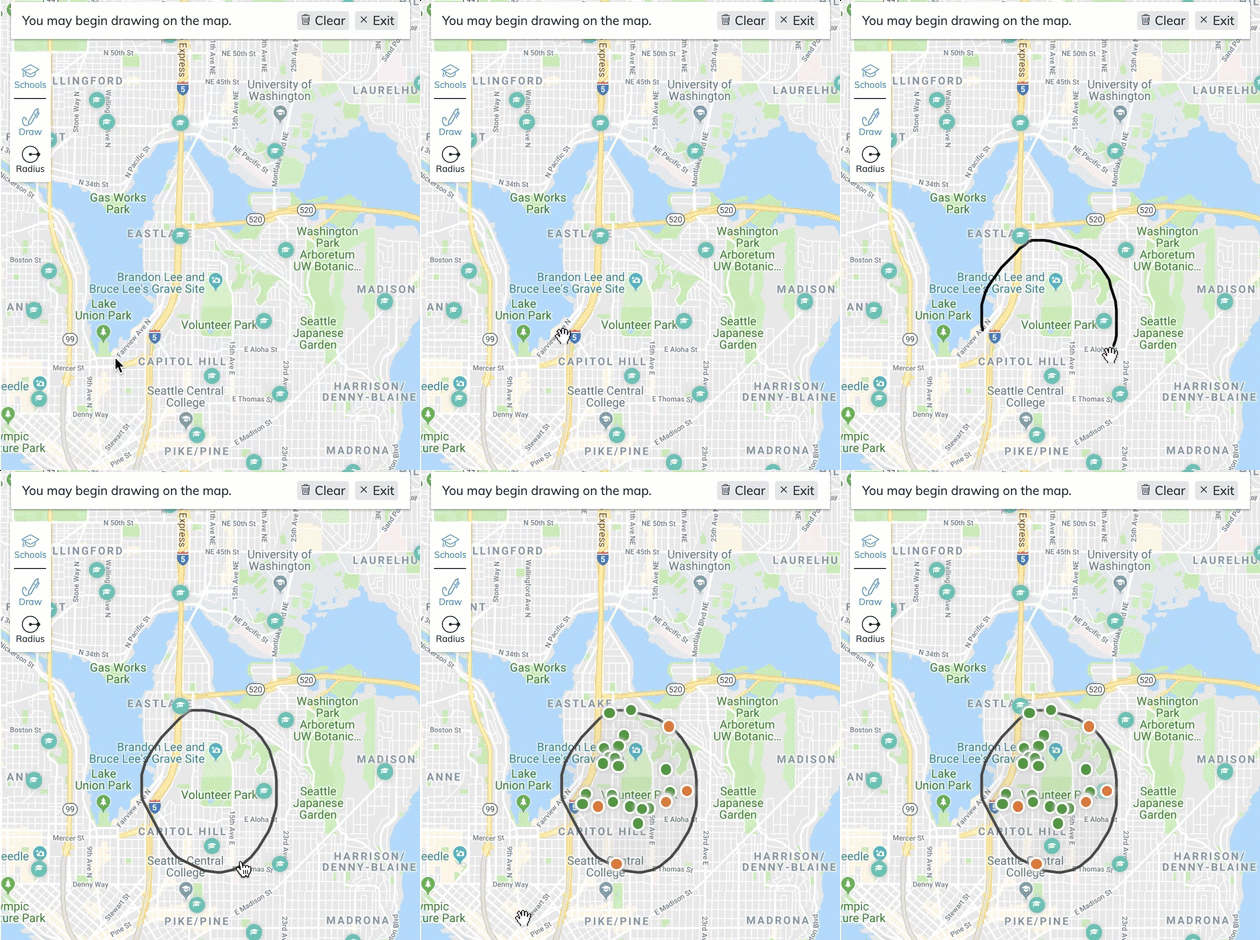
- Select the Comps you would like to include in your presentation.
Select Continue to go to the Comps Screen.
Multi Draw Tool
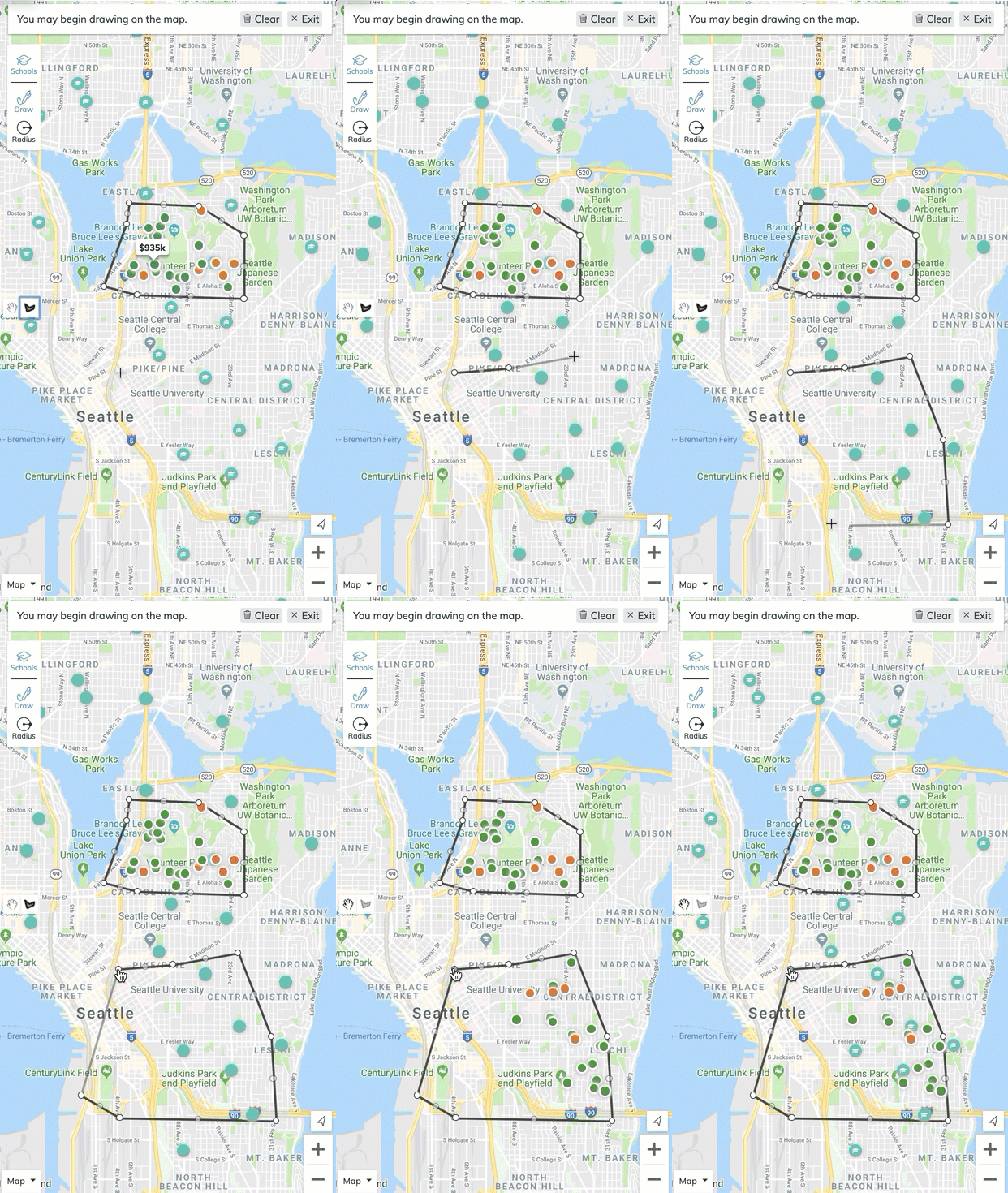
- If you need to get listings from a few different areas, start by selecting the Multi Draw
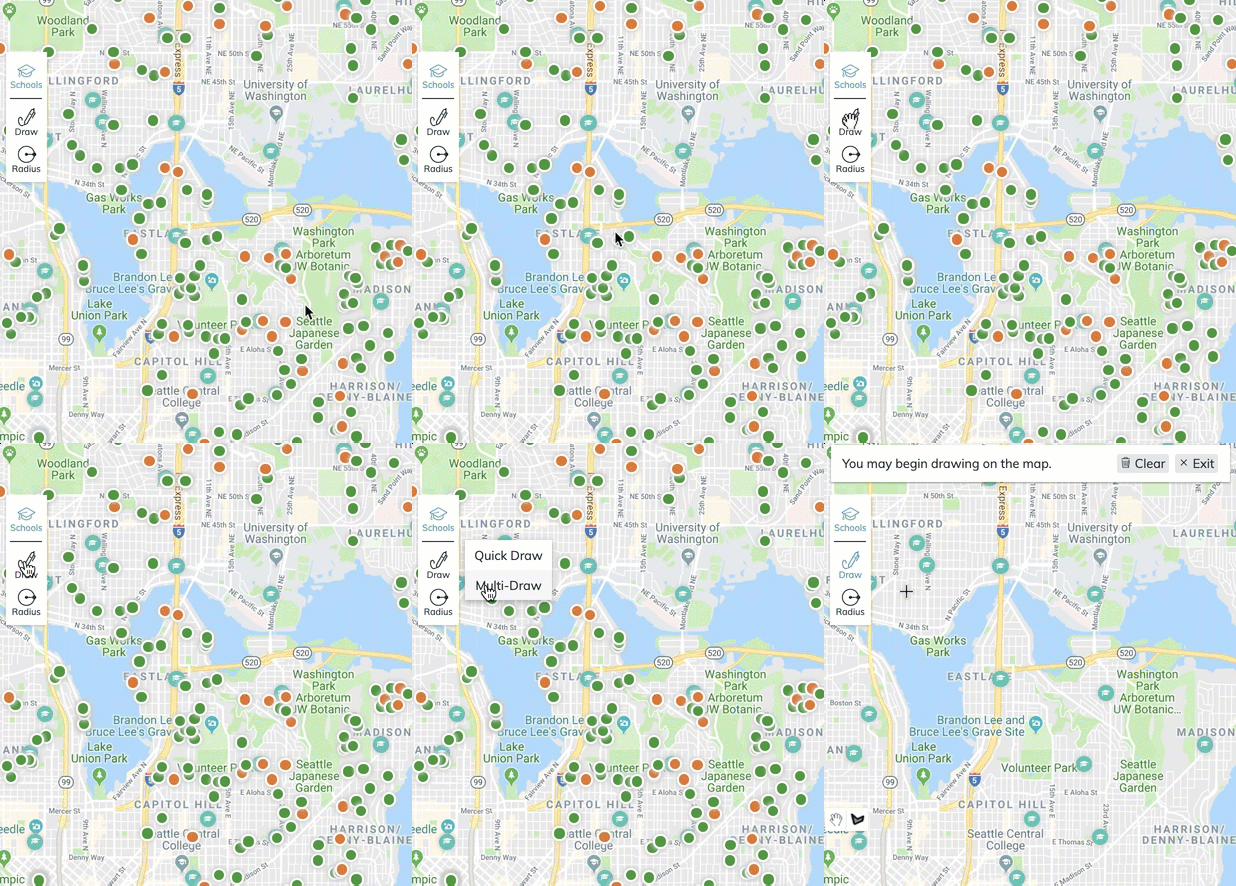
- Start selecting points that will outline the area you want see listings.
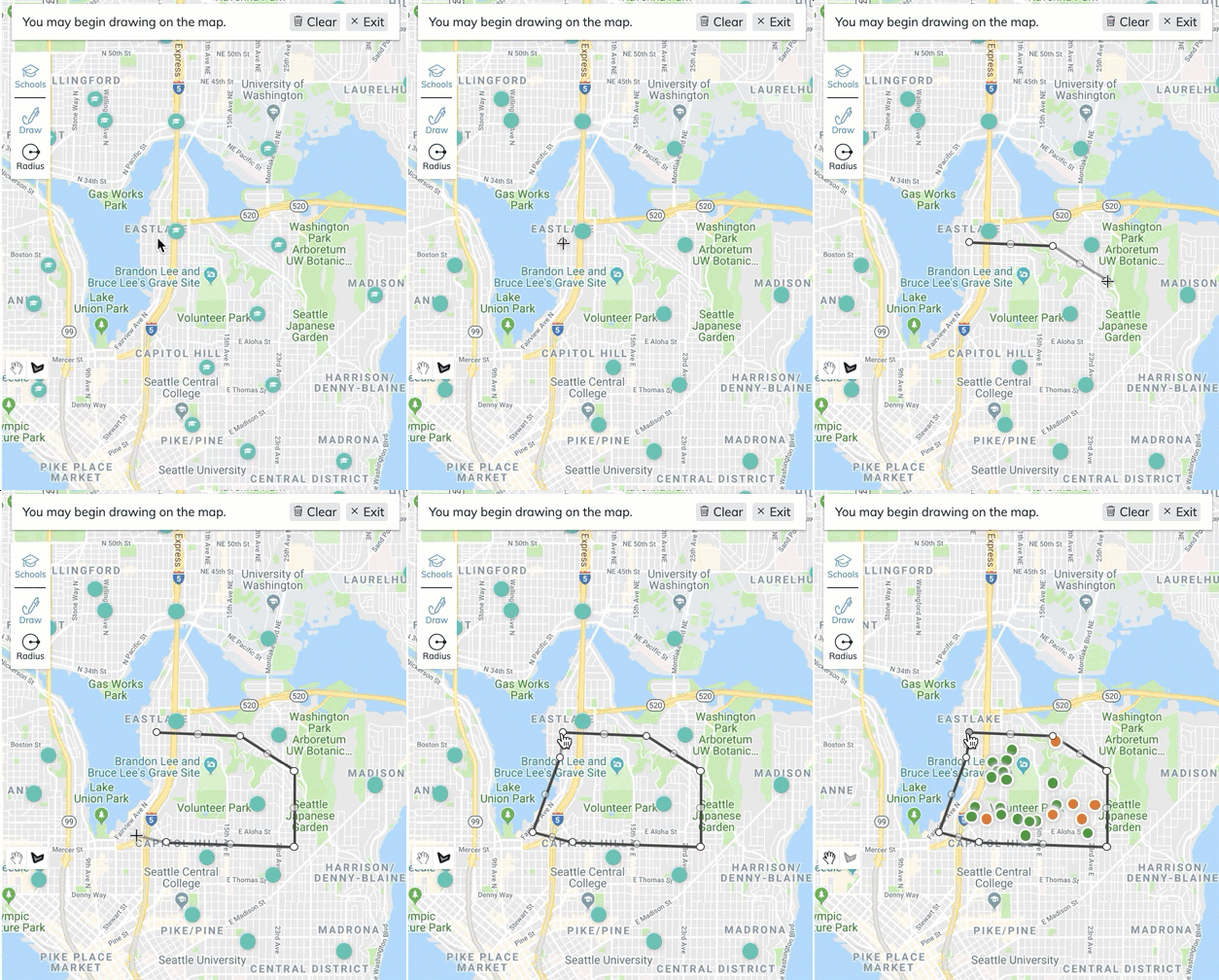
- If you would like to outline another area to get listings. Select the Multi Draw tool on the left hand side of the map.
- Then start selecting points on the map for the next area you want to see the listings!
Comments
0 comments
Article is closed for comments.