To download a video in MoxiImpress:
- Navigate to the video you would like to download. You will likely find it in your Recent Projects.
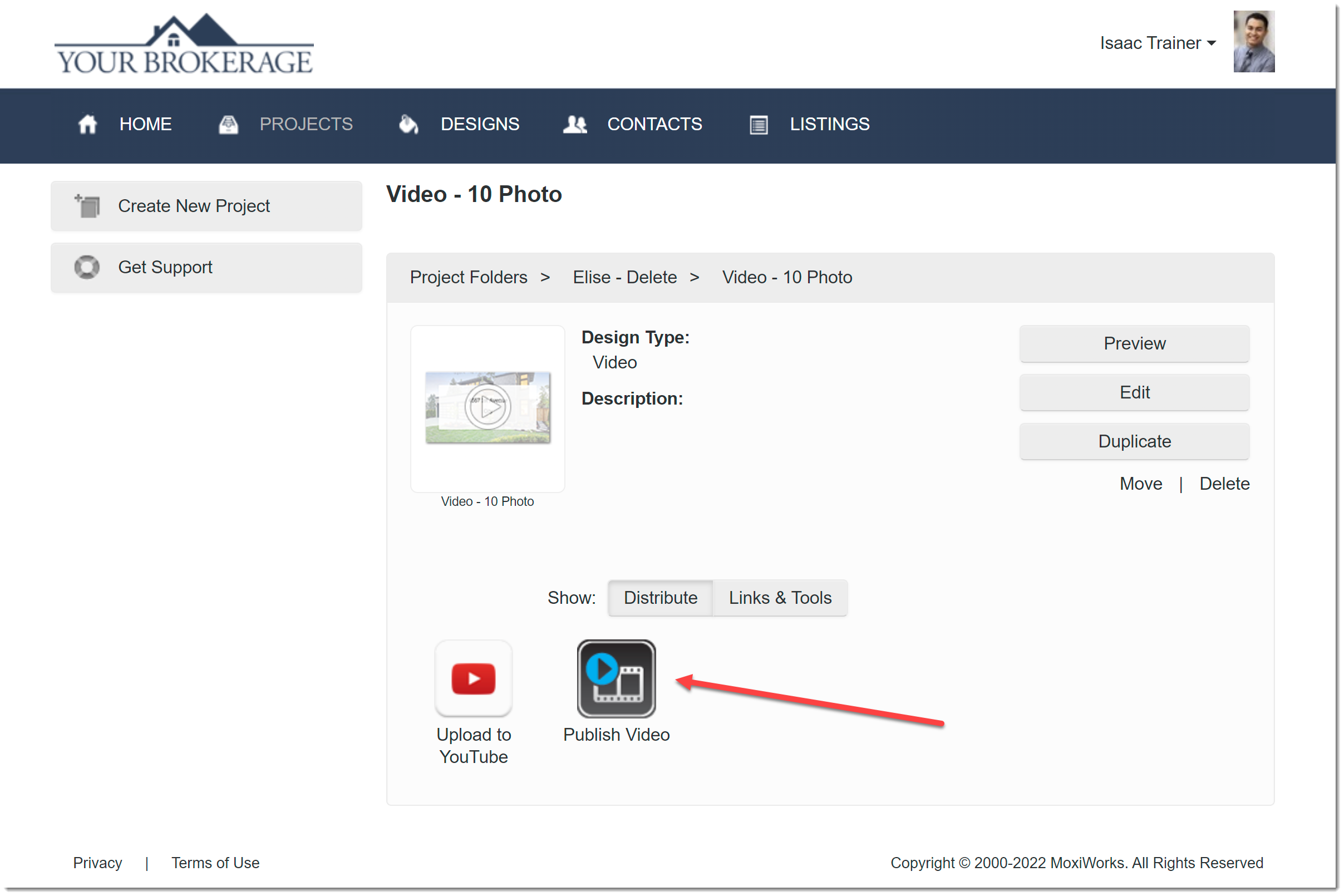
- Click Publish Video.
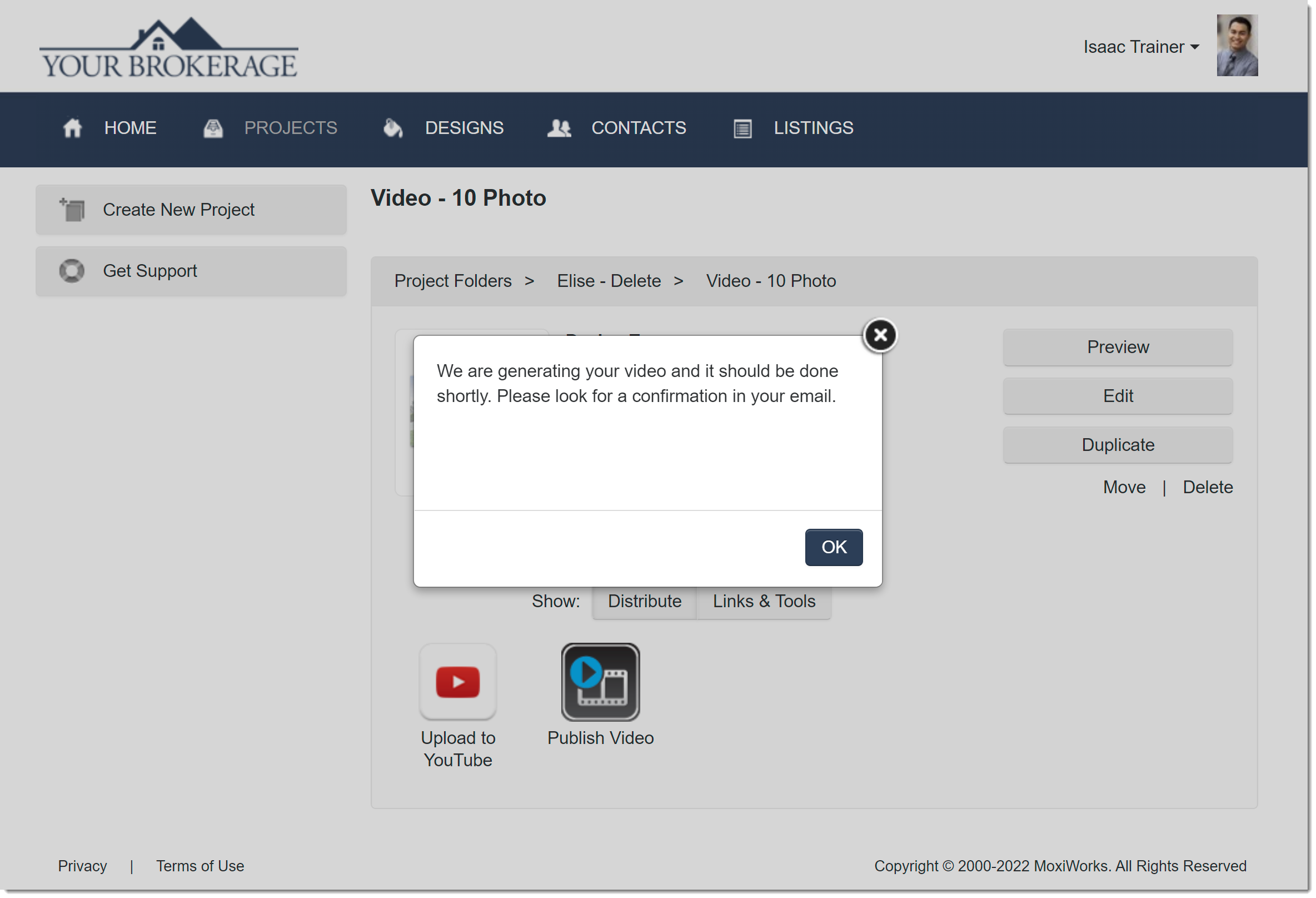
- View the pop-up letting you know that the video is being published.
 While the video is publishing, you will see the " Processing " status in the Links & Tools section.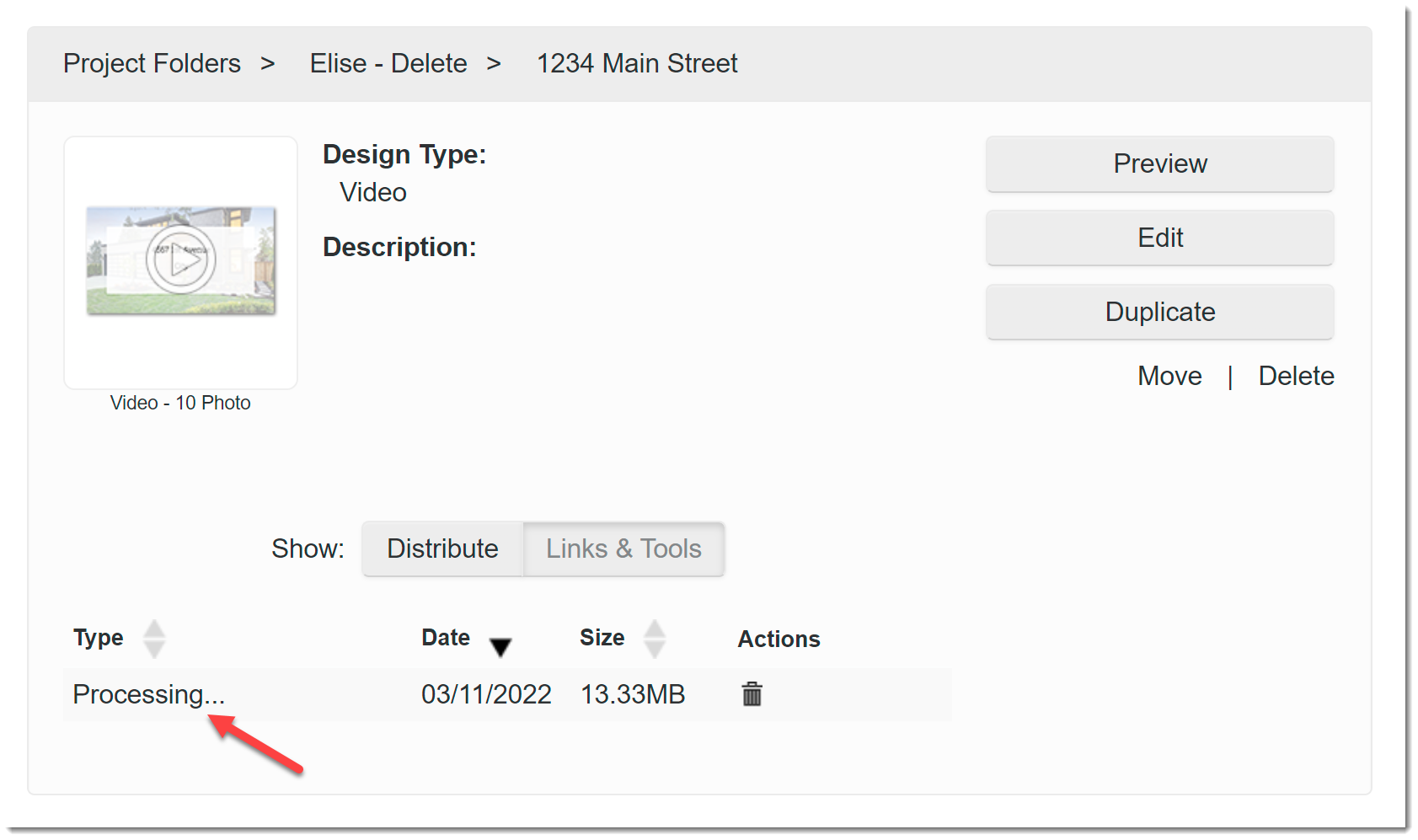
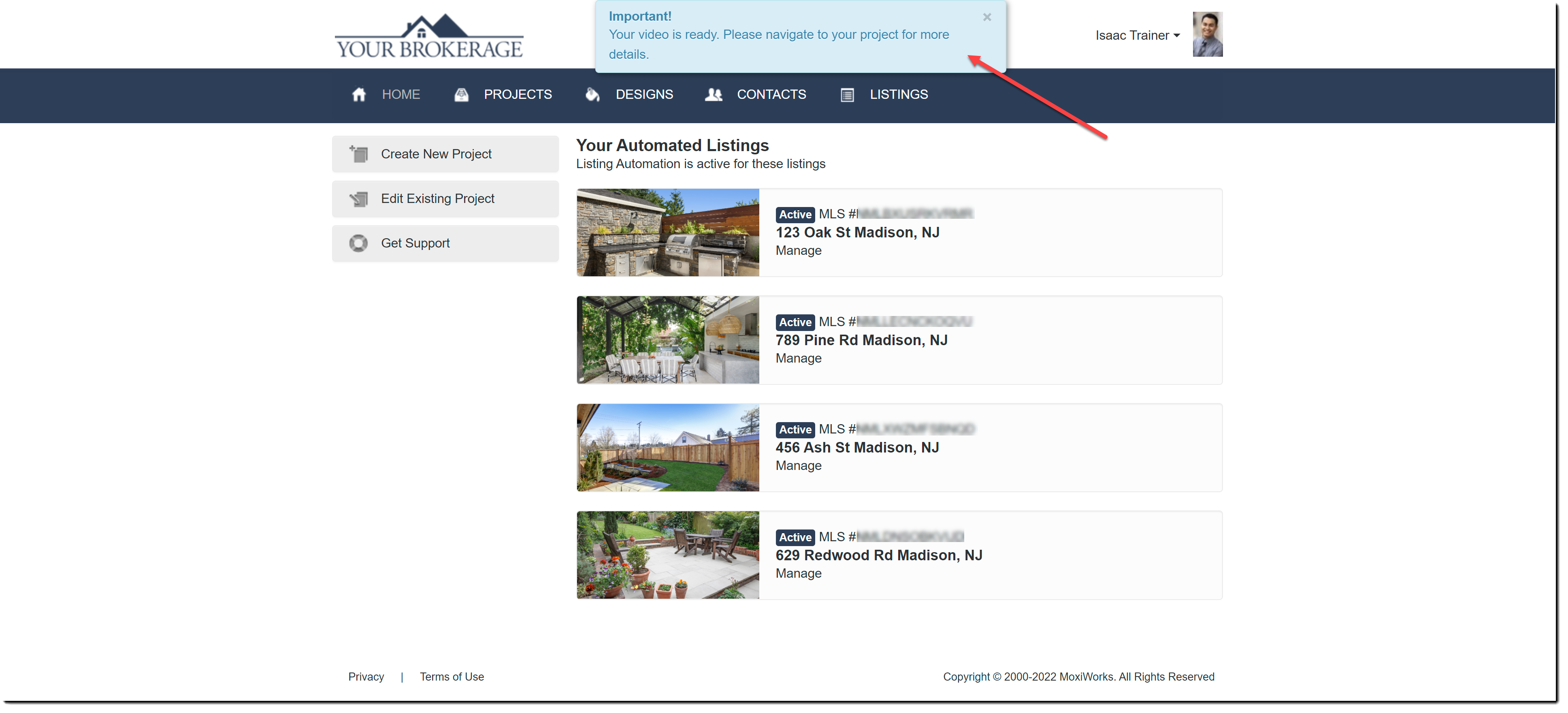
- Wait for an email notification that your video is published or look for the notification in Impress.
- Navigate back to your video project.
- Click Links & Tools.
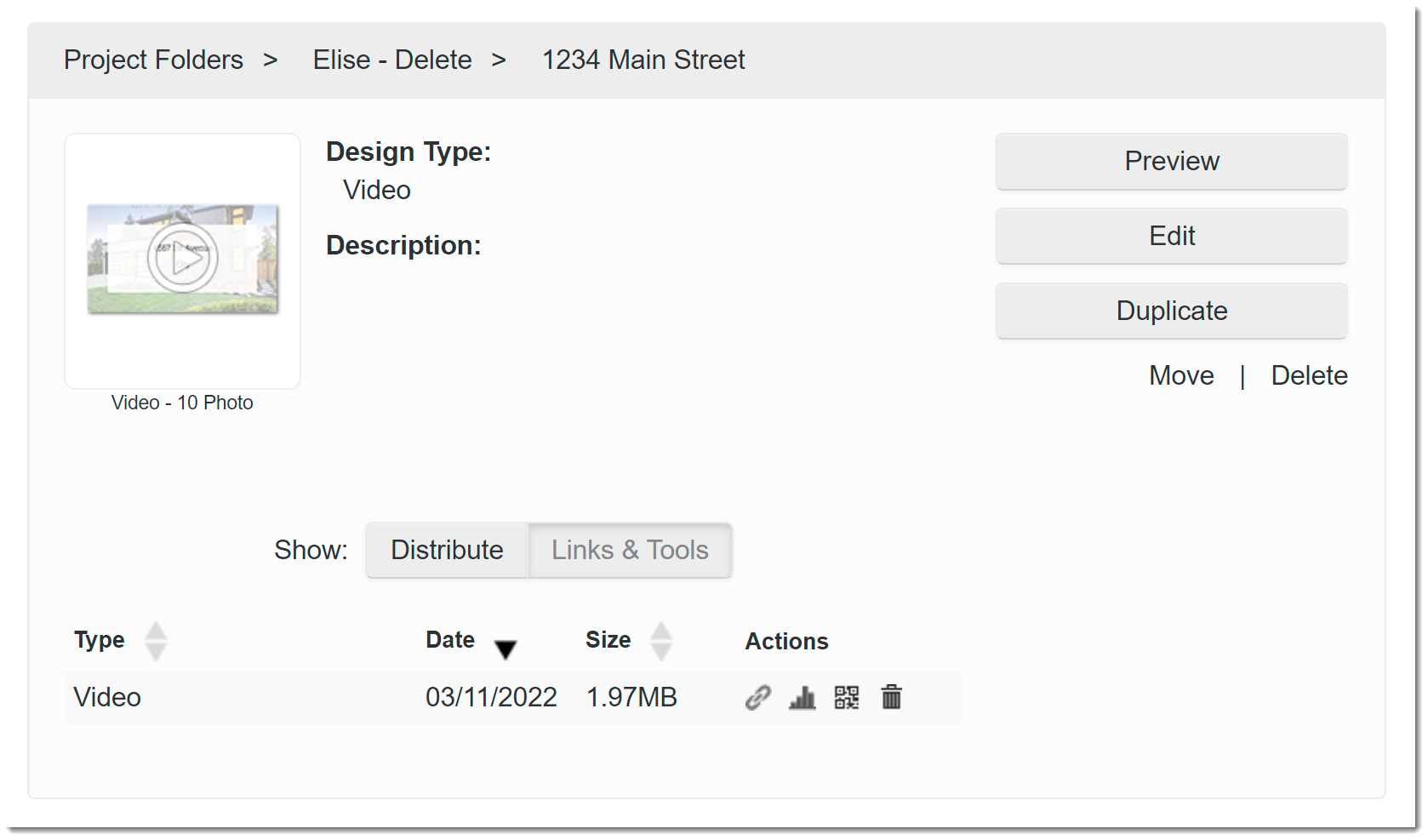
- Click on the video to bring up the pop-up and open the video.
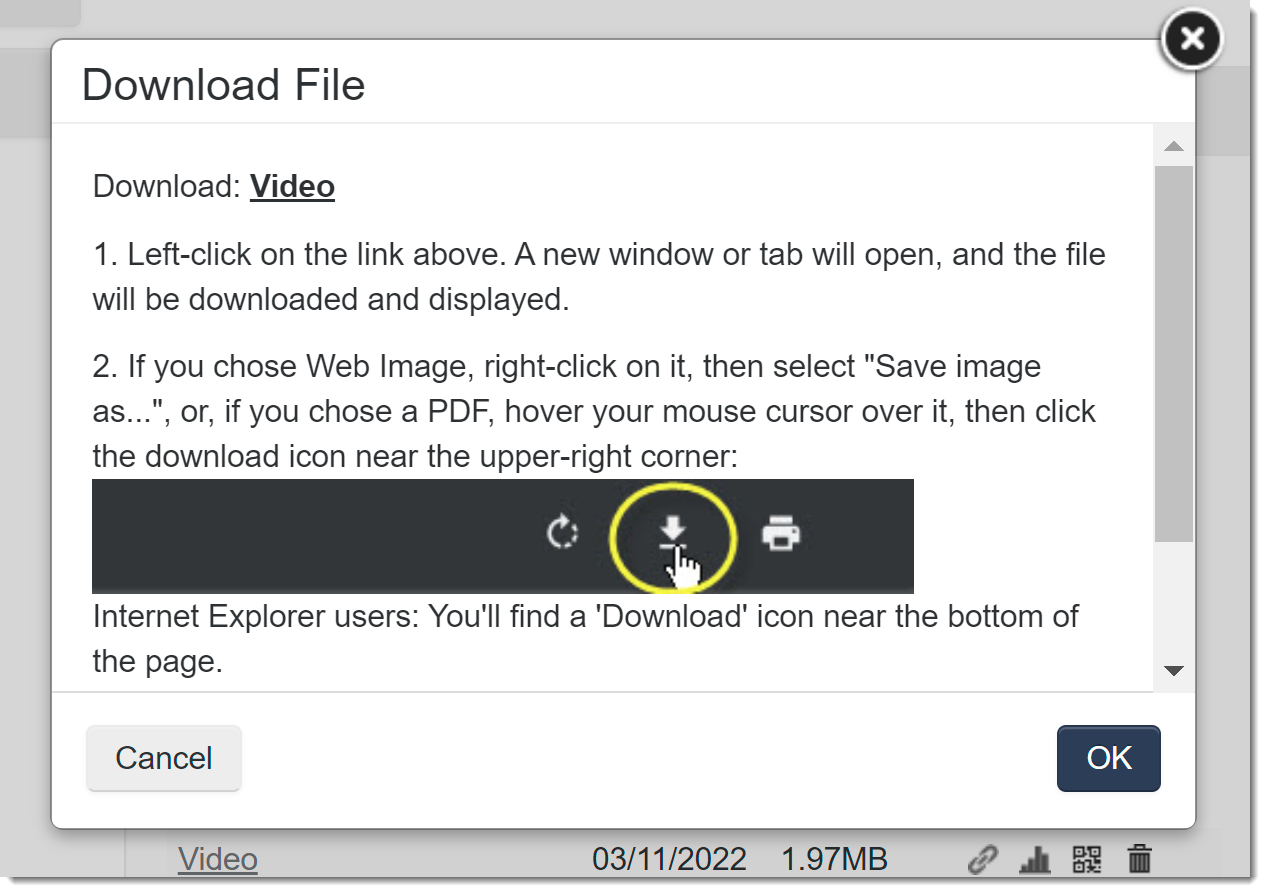
- Right-click on the video to download it.
 Note: If you are unable to download the video by following the above steps, please contact Support.
Comments
0 comments
Please sign in to leave a comment.