To quickly add all photos from a folder:
- Click Projects on the main menu at the top of the page.
- Select the project you would like to add photos to.
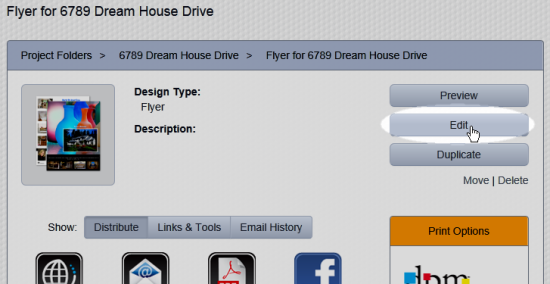
- Click the Edit button near the right side of the page:
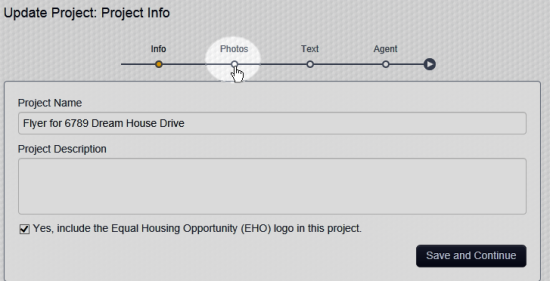
- Navigate to Photos:
- Click on Add Photos near the right side of the page:

- Navigate to the folder that contains the images you want to add to the project. Toward the bottom of the dialog, click the phrase Fill Project:
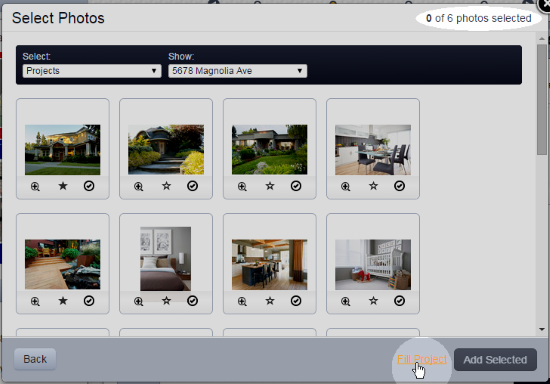
- Click the Add Selected button to add the images to the project:

You can change the order of photos in the project by dragging and dropping.
Comments
0 comments
Please sign in to leave a comment.