You can search or browse for project folders. If you do not recall the exact name of the project folder you are looking for, using the sorting and filtering options will help you find the folder.
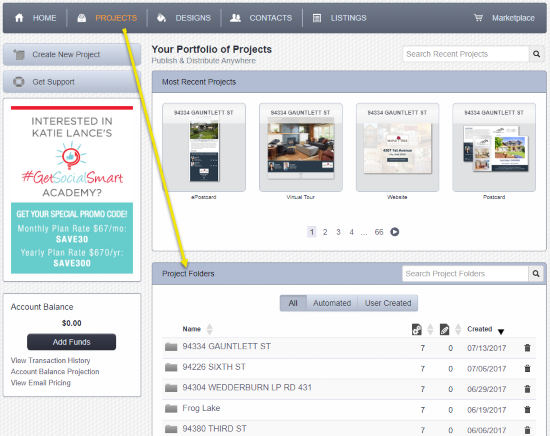
First navigate to the list of Project Folders:
- Click on Projects on the main menu at the top of any page.
- Scroll past the Recent Projects section to the Project Folders section of the page:
Searching
If you know at least one of the words in the name of the folder you are looking for, you can use the Search Project Folders field to search for the word. As you type, the list of folders will be reduced to show only folders that include what you have typed, as seen in this example: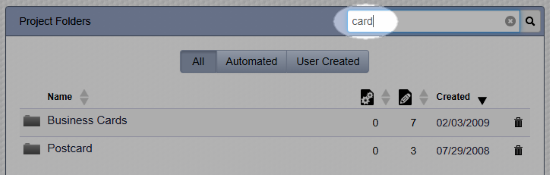
Filtering
Use filters to show fewer folders. For example, if you are looking for a folder containing one or more projects you created yourself, click the User Created button to show only folders that contain projects you created yourself. This hides all folders that do not contain any manually created projects. If you have no automatically created projects, you will not see these filter buttons: 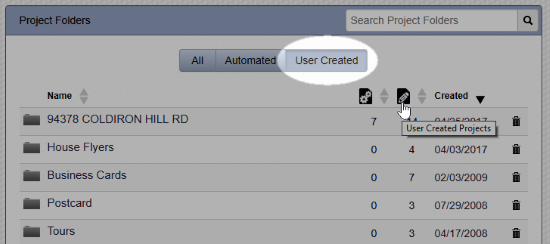
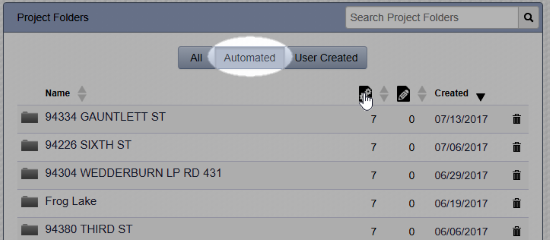
Conversely, if you are looking for a folder that contains automatically created projects, you can click the Automated button to show only folders that contain only automated projects. This hides all folders that do not contain any automatically created projects If you have no automatically created projects, you will not see these filter buttons:
Sorting
You can also sort the folders to help find what you are looking for. The sorting options also work with search and filter results.
When you first load the Projects page, the folders are sorted with the most recently created folder at the top of the list by default.
To sort by folder name, click on Name or on the carets (upward and downward pointing arrows/triangles). The first click will sort the folders alphabetically in ascending order (e.g. 1,2,3 and A,B,C. Folder names that start with numbers are displayed above folder names that start with letters): 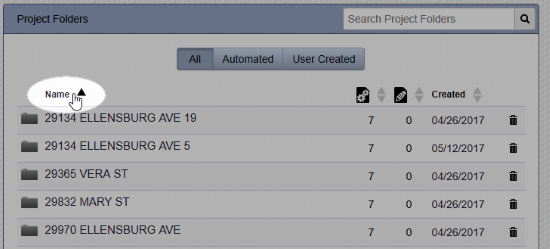
Click again to reverse the sort and display the folder names in descending order (e.g. 9, 8, 7 and Z, Y, X): 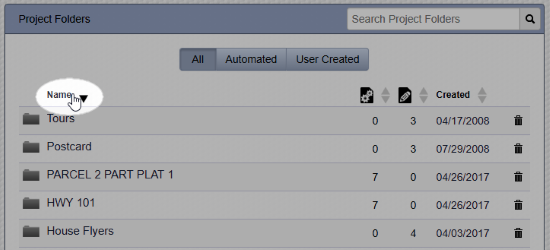
You can also sort by the number of automatically created projects in a folder (the gear icon), number of manually created projects in a folder (the pencil icon), or by the date the folder was created: 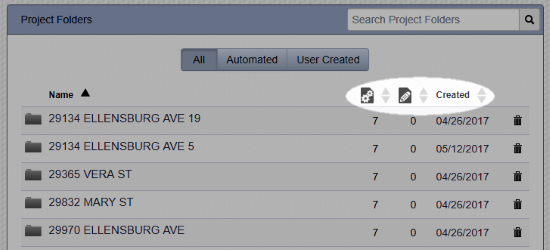
Comments
0 comments
Please sign in to leave a comment.