User Session reports by Account Plan show unique users and total sessions from the selected Account Plan, within the specified date range.
To run a User Session report for an Account Plan:
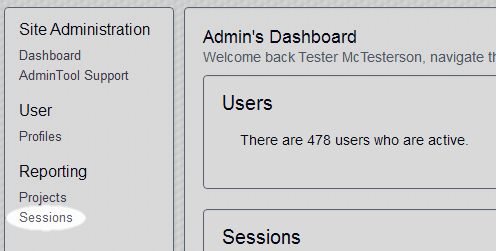
- Click Sessions in the left column:
- Select the start date with Date From and end date with Date To for your report:

- Use the menu labeled Account Plan to select an account plan:

Note: Enter a User ID to generate a report showing only that user's activity. - Click the Generate Report button:

- The results of your report will be displayed on screen.
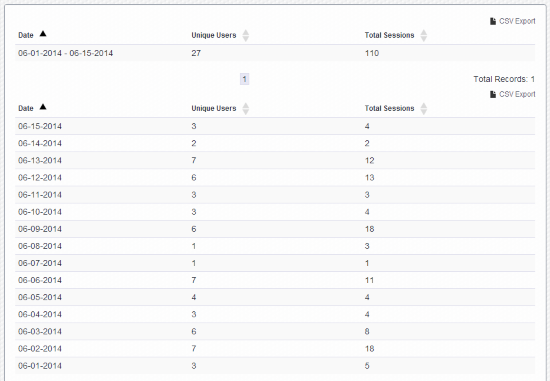
In the results you will see a column for Unique Users and a column for Total Sessions.
Unique users: This is the number of users who logged in during the specified period. If a user logged in multiple times during the specified period, they are counted only once in the Unique Users column.
Sessions: This is the total number of logins during the specified period. If a user logged in five different times during the specified period, each of those five logins is counted as a session in the Total Sessions column:
Export these results to a CSV file for viewing in a spreadsheet program, such as Excel, by clicking on the 2nd instance of CSV Export: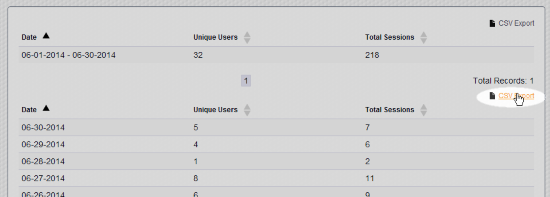
Comments
0 comments
Please sign in to leave a comment.