Create links for your homepage showcasing popular neighborhood or real estate information; or a list of links to vendors you can add to any custom page.
Using Links
Choose the order the links will appear
Adding a New Link Category
- From the Links pages, select Add New
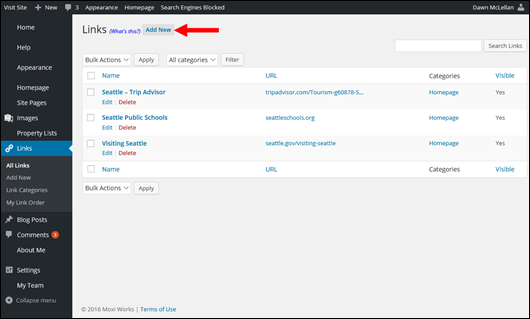
- Enter the name of the link as you want it to show on your website.
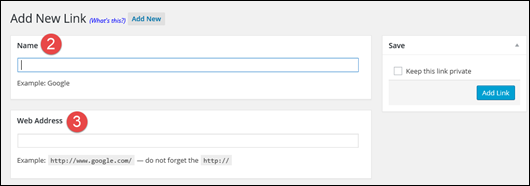
- Enter the URL (web address) of your link.
- Select or Add New Category
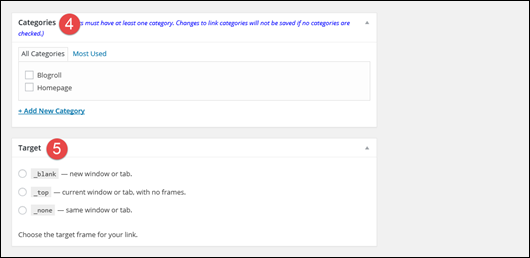
- Select the Target for your link (e.g. Open in a new window or tab)
- Select Add Link.
Using Links
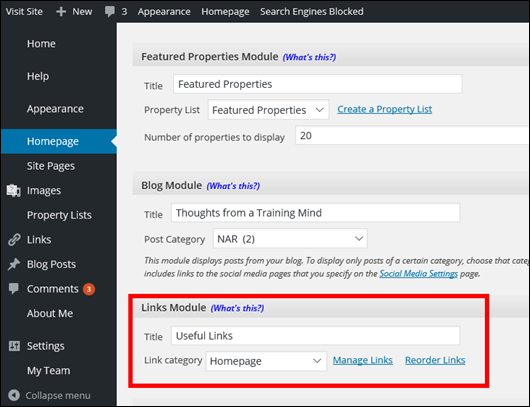
- From the Homepage screen, give your Links Module a title and select the link category you want to show on your website homepage (see below, circled in red).
- Scroll to the bottom and select Publish.
Choose the order the links will appear
- From the Links pages, select My Link Order (see below, indicated by the red arrow)

- Select the category you wish to order (see above, circled in red)
- Select Order Links in this Category (see above, indicated by the blue arrow)
- Drag each link into the preferred order (see below, circle in red).

- Select Click to Order Links (see above, indicated by the red arrow).
Adding a New Link Category
You can organize your links into meaningful categories! By creating a category of links, you can set that category to display on your website homepage for visitors to see.
To create a new link category, follow these steps:
-
From the Admin Tool panel, select Links and Link Categories.
- Fill out the fields Name, Slug (optional), and Description (optional) (see below).

- Select Add New Link Category (see below).

Comments
0 comments
Please sign in to leave a comment.