The automatic search uses all the information that was added to the subject property page to find comparable listings. You can adjust the search criteria to find additional or different listings.
The subject property address will be in the search bar. You can update this to:
- City
- Zip Code
- MLS Area
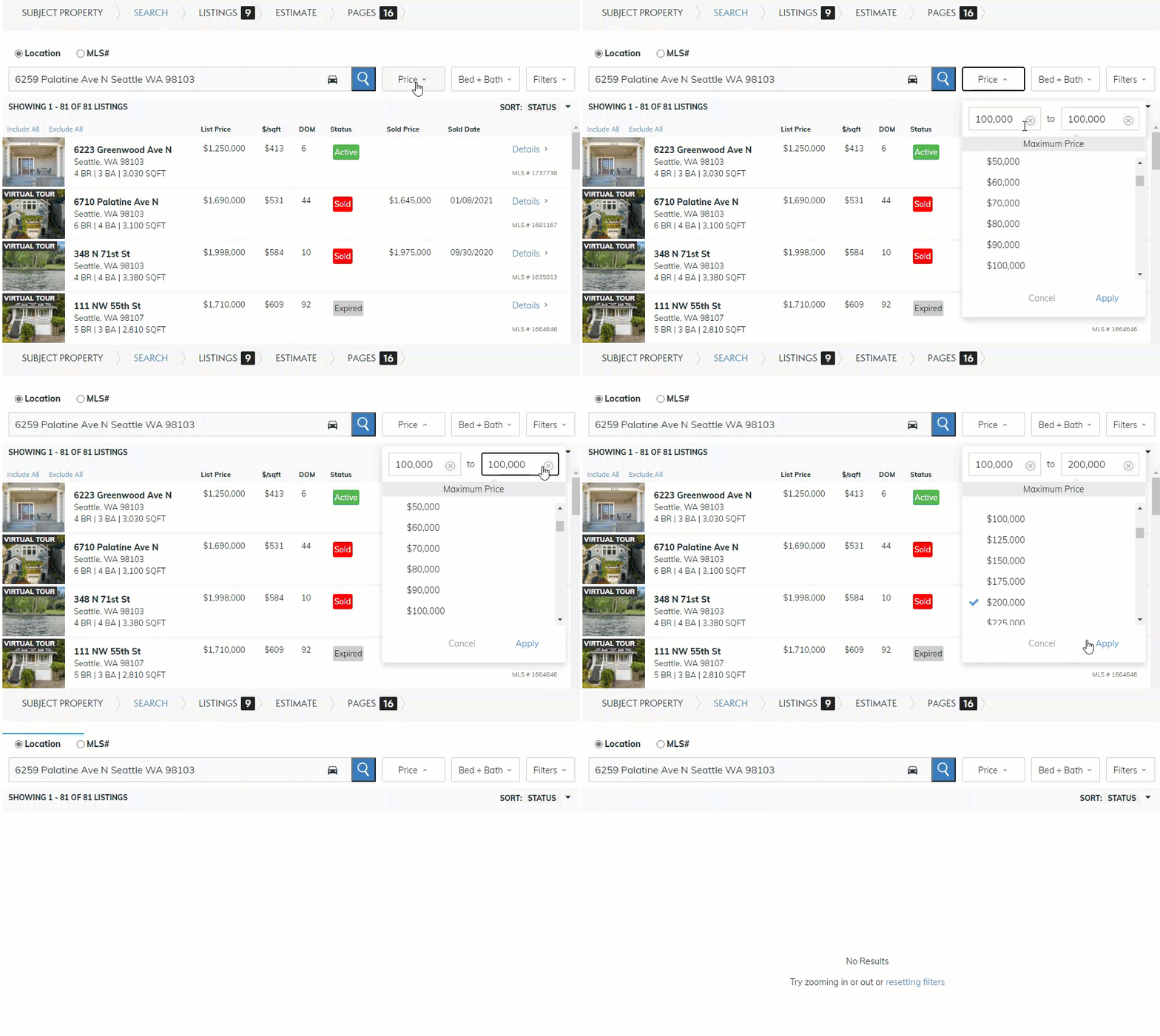
Narrow your search criteria by adding a price range (see below).
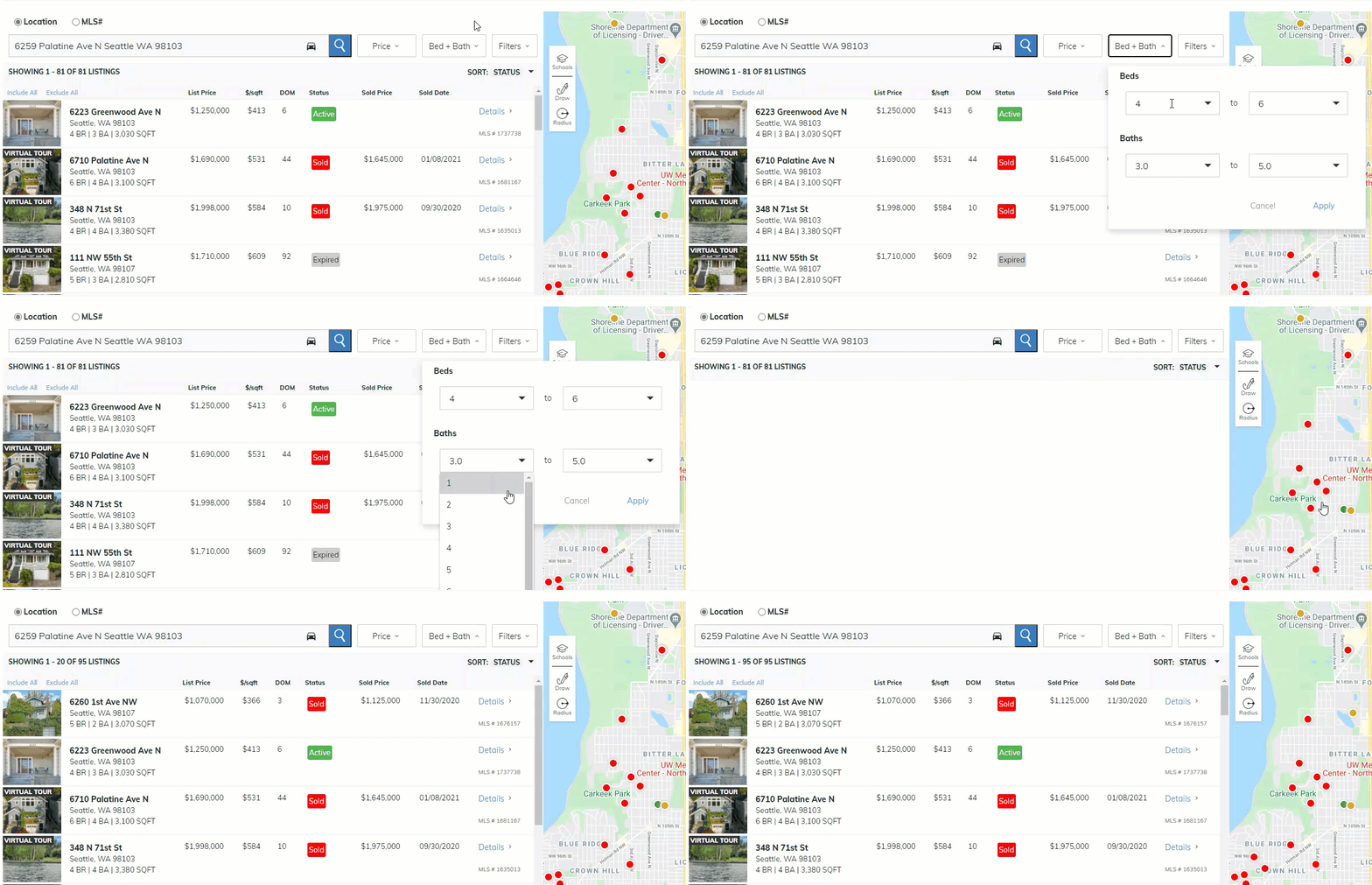
Or adjust the total bedrooms and bathrooms (see below).
Additional filters allow for narrowing or expanding your search.
- Property Types: Be sure to include or remove all the property types you need.
- Property Details: Alter the square footage to expand your search
- Features: Choose specific listing features like Waterfront or View to narrow your search.
- Building Styles: Narrow you search to include only Single-Story or Duplex
- Listing Status: Expand your search by changing the Sold status timeframe from 6 months up to 2 years.
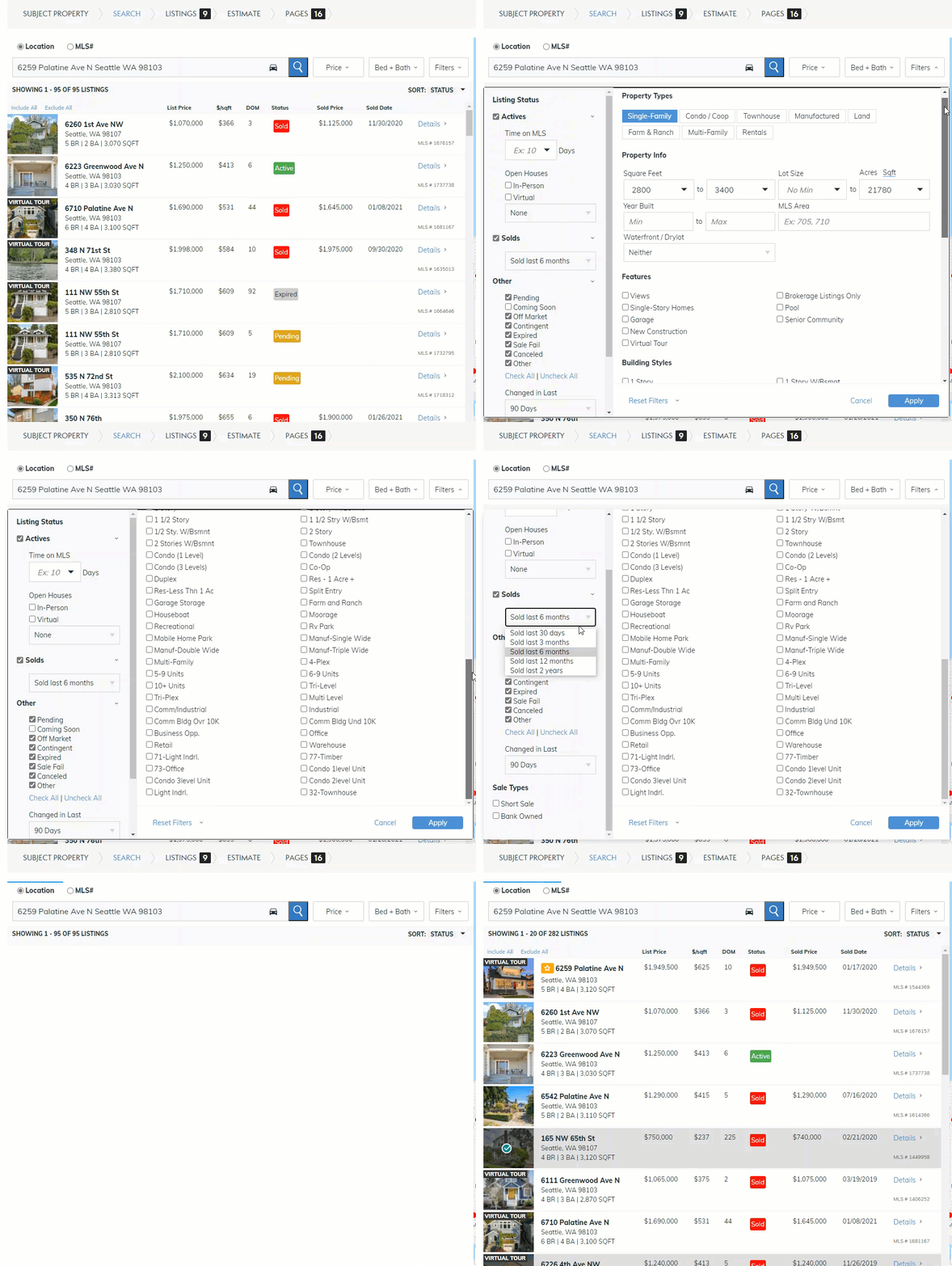
Be sure to select Apply for the filter changes to take effect.
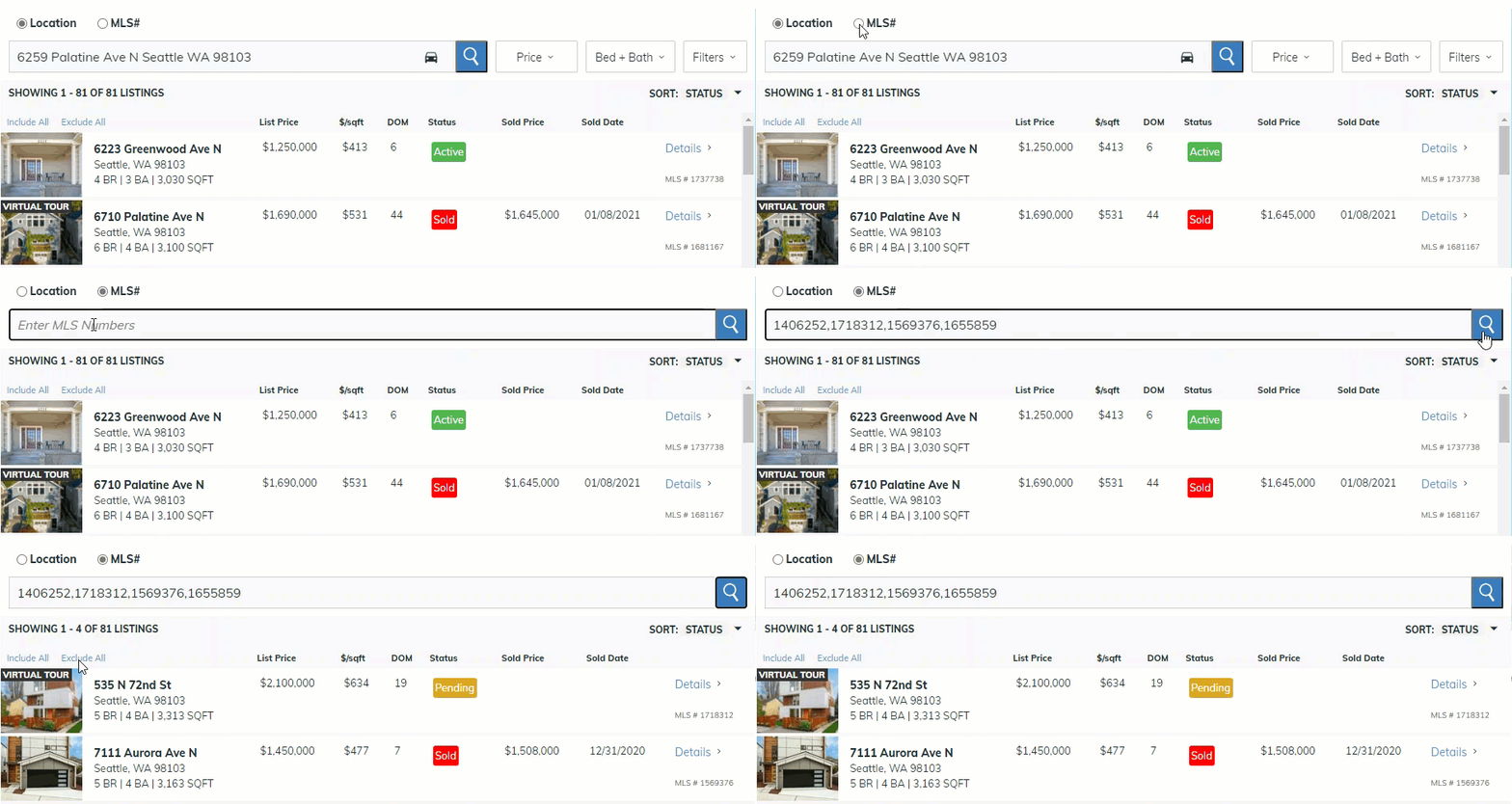
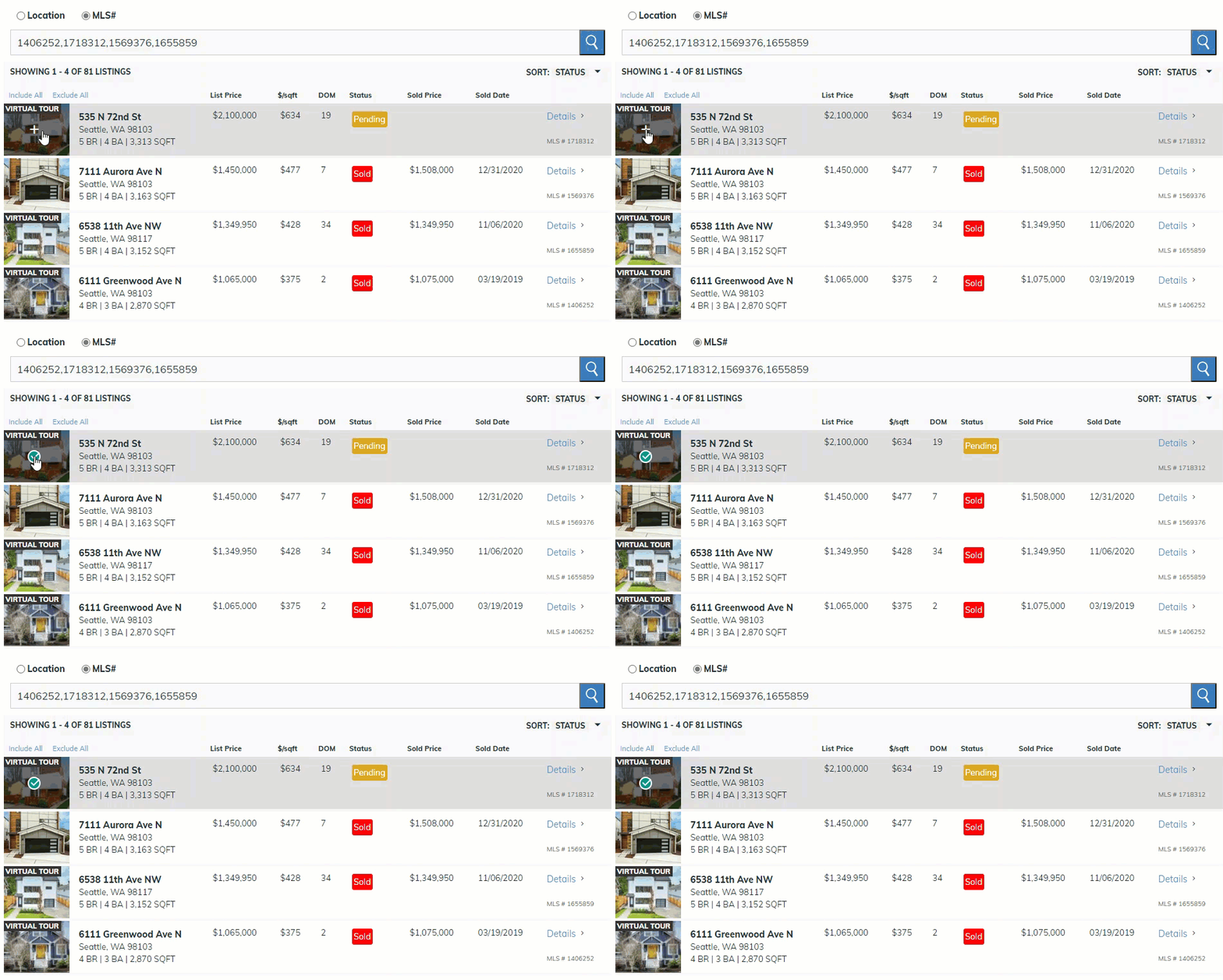
If you know the listings you wish to include, select the MLS number button and enter the listing numbers into the search bar (see below).
Adding Comparables to your Presentation
When you have identified the listings you wish to include, select the plus icon over the listing image (see below).
When done, select Continue to move on to the Listing page (see below).

Note: You can return to the screen as often as needed to change criteria and include a variety of listing comparables.
Comments
0 comments
Please sign in to leave a comment.