These instructions are for Windermere accounts only. If you are not with Windermere, please reach out to your office admin or brokerage Support team for assistance with your brokerage email.
To reset your O365 email password, login at windermerehub.com and navigate to the WORC site.
 Select My Account from the Admin drop-down menu in the upper right corner.
 Select Account Settings from the left-hand navigation and then select Passwords.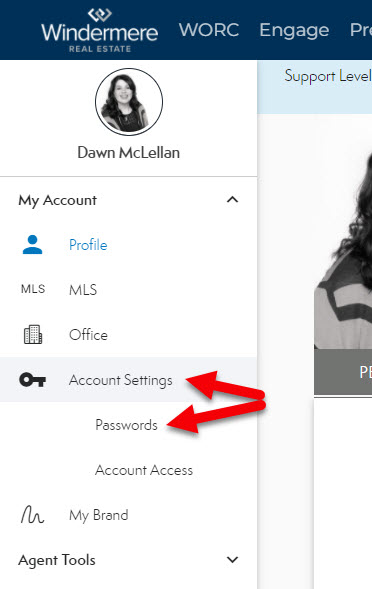
 Enter a new password that matches the criteria indicated onscreen.
 Note: Email passwords must adhere to the following rules:
- Passwords can NOT include your username (exchange email name) OR any variation of your company name.
- Must be 8-16 characters.
- Must contain 3 of the following:
- Uppercase letters (A through Z)
- Lowercase letters (a through z)
- Numerals (0, 1, 2, 3, 4, 5, 6, 7, 8, 9)
- Non-alphanumeric characters: ~!@#$%^&*()_+-={}[]:";'<>?,./
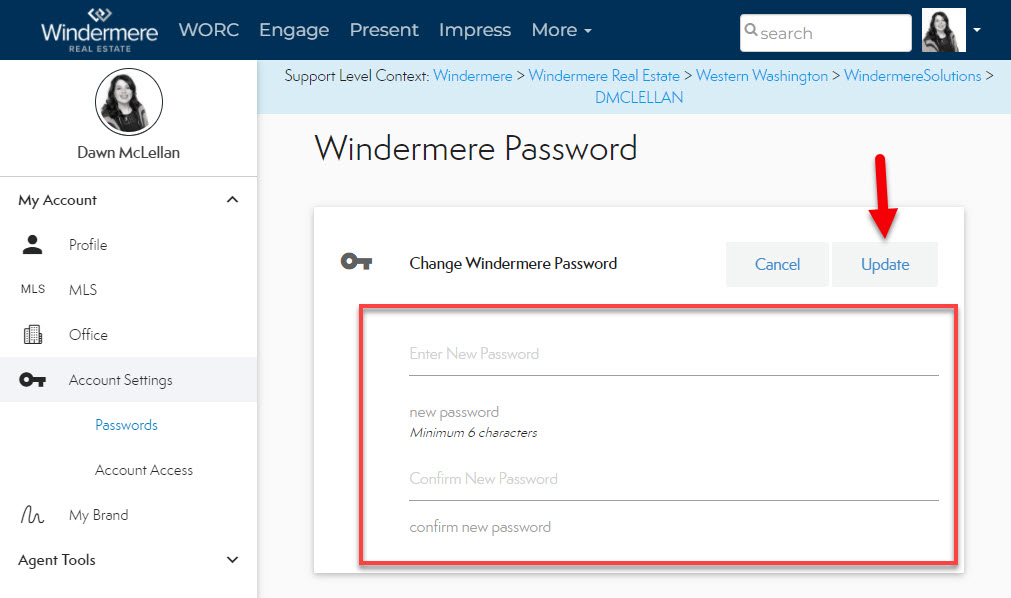
 Confirm New Password and then select Update.
Note: This update only applies to your email password. Any device you have set up to check your email will need to be updated with this password.
Note: Once you reset your password, it can take 15-20 minutes for the new password to take effect so if you try logging in and the new password isn't working, please wait a bit and try again before contacting support.
Note: If you find that you are regularly forgetting your passwords, we recommend using a service like LastPass or 1Password. These services are designed to help you securely manage your passwords without having to remember each one for every site you use.
Comments
0 comments
Article is closed for comments.